> ## Documentation Index
> Fetch the complete documentation index at: https://docs.fynn.eu/llms.txt
> Use this file to discover all available pages before exploring further.
# DATEV Export
> Export postings in DATEV format and import them into your accounting software
## Export Postings
Go to [Postings > Exports](https://app.fynn.eu/accounting/export).
 Click the "Export Postings" button. A window opens where you can configure the export.
* **Consultant**, **Client**: You can find the consultant and client number in DATEV. Alternatively, you can use fictitious numbers.
* **Account Length**: The account length must match the length of the accounts in your accounting program.
* **Fiscal Year Start**: The date when the fiscal year begins.
* **Export Period**: Select the period for which you want to export the postings.
* **Include Open Invoices and Documents**: Also exports postings from open invoices and documents.
* **Include Finalized Data**: Also exports finalized postings including invoices and associated documents.
Click the "Export Postings" button. A window opens where you can configure the export.
* **Consultant**, **Client**: You can find the consultant and client number in DATEV. Alternatively, you can use fictitious numbers.
* **Account Length**: The account length must match the length of the accounts in your accounting program.
* **Fiscal Year Start**: The date when the fiscal year begins.
* **Export Period**: Select the period for which you want to export the postings.
* **Include Open Invoices and Documents**: Also exports postings from open invoices and documents.
* **Include Finalized Data**: Also exports finalized postings including invoices and associated documents.
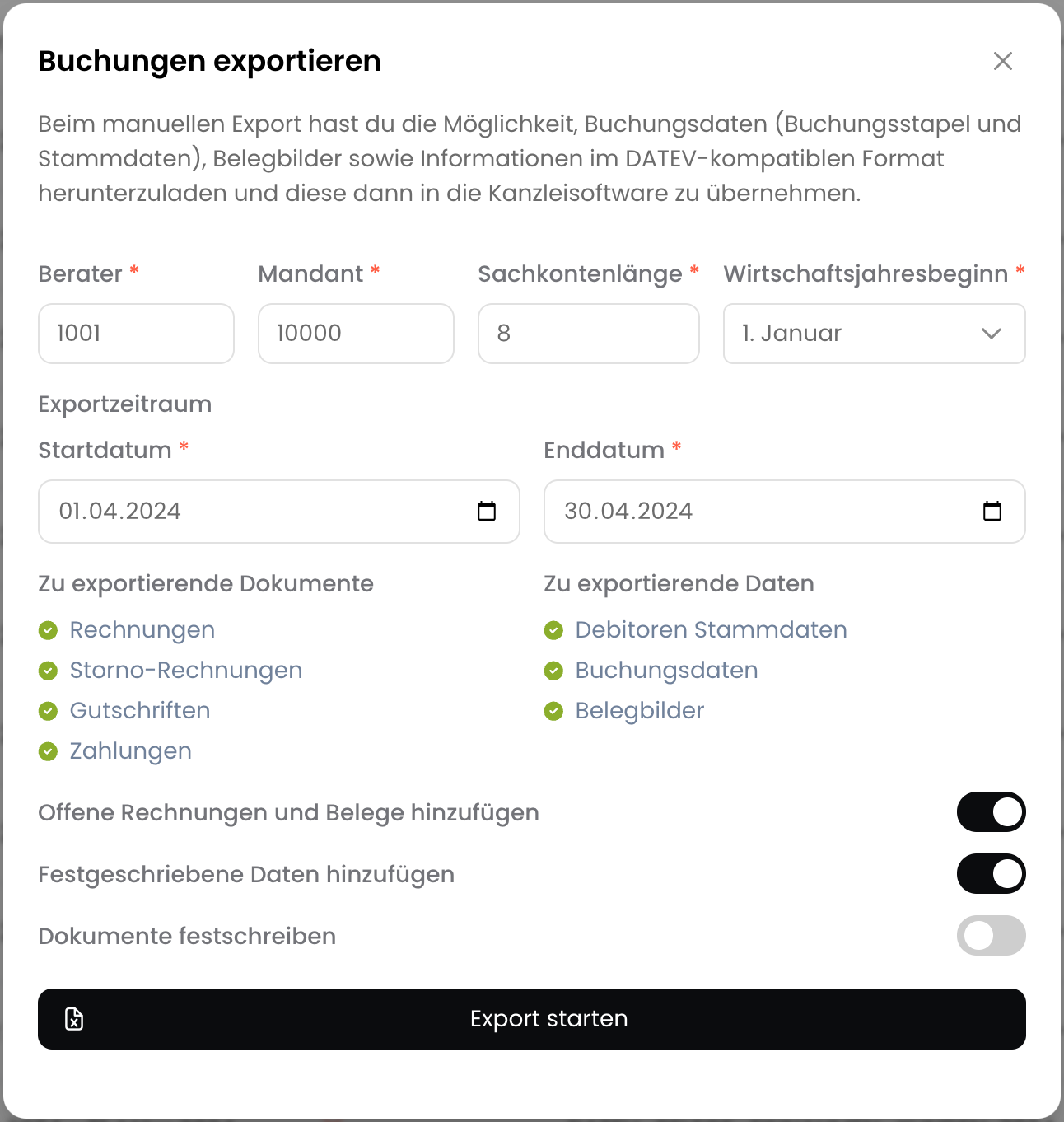 Select the "Finalize Documents" option to finalize the postings. After this, the postings can no longer be changed and corrective postings will be created for any changes.
Click the "Start Export" button. The postings will now be exported and can be downloaded after a few seconds.
Please do not close the window in the meantime.
The export may take a few seconds, depending on the number of postings and the size of the files.
The export is complete. You can import the downloaded files into your accounting program.
With manual export, you have the option to download posting data (posting batch and master data), document images, and information in DATEV-compatible format and then import them into the accounting software.
## Import Postings into DATEV
To import the posting batch into **DATEV Unternehmen-Online**, follow these steps: [https://apps.datev.de/help-center/documents/1005516](https://apps.datev.de/help-center/documents/1005516)
To import the posting batch into **DATEV Kanzlei-Rechnungswesen**, follow these steps: [https://apps.datev.de/help-center/documents/1034038](https://apps.datev.de/help-center/documents/1034038)
## Posting Keys
When using DATEV, depending on your DATEV settings, it may be necessary to specify posting keys.
These posting keys are automatically used when creating postings.
To add a posting key for an account, add the posting key to the account number as follows: `.`.
**Example**
* Account Number: 8400
* Posting Key: 40
* Result: 40.8400
### Tax Automation
For correct posting within DATEV, it is necessary to have automatic accounts set up for the revenue accounts.
Otherwise, the corresponding VAT will not be posted correctly.
## DATEVconnect online
For automated transfer of postings to DATEV, you can use the DATEVconnect online integration.
Set up automatic synchronization with DATEV Kanzlei-Rechnungswesen.
Select the "Finalize Documents" option to finalize the postings. After this, the postings can no longer be changed and corrective postings will be created for any changes.
Click the "Start Export" button. The postings will now be exported and can be downloaded after a few seconds.
Please do not close the window in the meantime.
The export may take a few seconds, depending on the number of postings and the size of the files.
The export is complete. You can import the downloaded files into your accounting program.
With manual export, you have the option to download posting data (posting batch and master data), document images, and information in DATEV-compatible format and then import them into the accounting software.
## Import Postings into DATEV
To import the posting batch into **DATEV Unternehmen-Online**, follow these steps: [https://apps.datev.de/help-center/documents/1005516](https://apps.datev.de/help-center/documents/1005516)
To import the posting batch into **DATEV Kanzlei-Rechnungswesen**, follow these steps: [https://apps.datev.de/help-center/documents/1034038](https://apps.datev.de/help-center/documents/1034038)
## Posting Keys
When using DATEV, depending on your DATEV settings, it may be necessary to specify posting keys.
These posting keys are automatically used when creating postings.
To add a posting key for an account, add the posting key to the account number as follows: `.`.
**Example**
* Account Number: 8400
* Posting Key: 40
* Result: 40.8400
### Tax Automation
For correct posting within DATEV, it is necessary to have automatic accounts set up for the revenue accounts.
Otherwise, the corresponding VAT will not be posted correctly.
## DATEVconnect online
For automated transfer of postings to DATEV, you can use the DATEVconnect online integration.
Set up automatic synchronization with DATEV Kanzlei-Rechnungswesen.