> ## Documentation Index
> Fetch the complete documentation index at: https://docs.fynn.eu/llms.txt
> Use this file to discover all available pages before exploring further.
# Products
> Create and manage your products
## Add Product
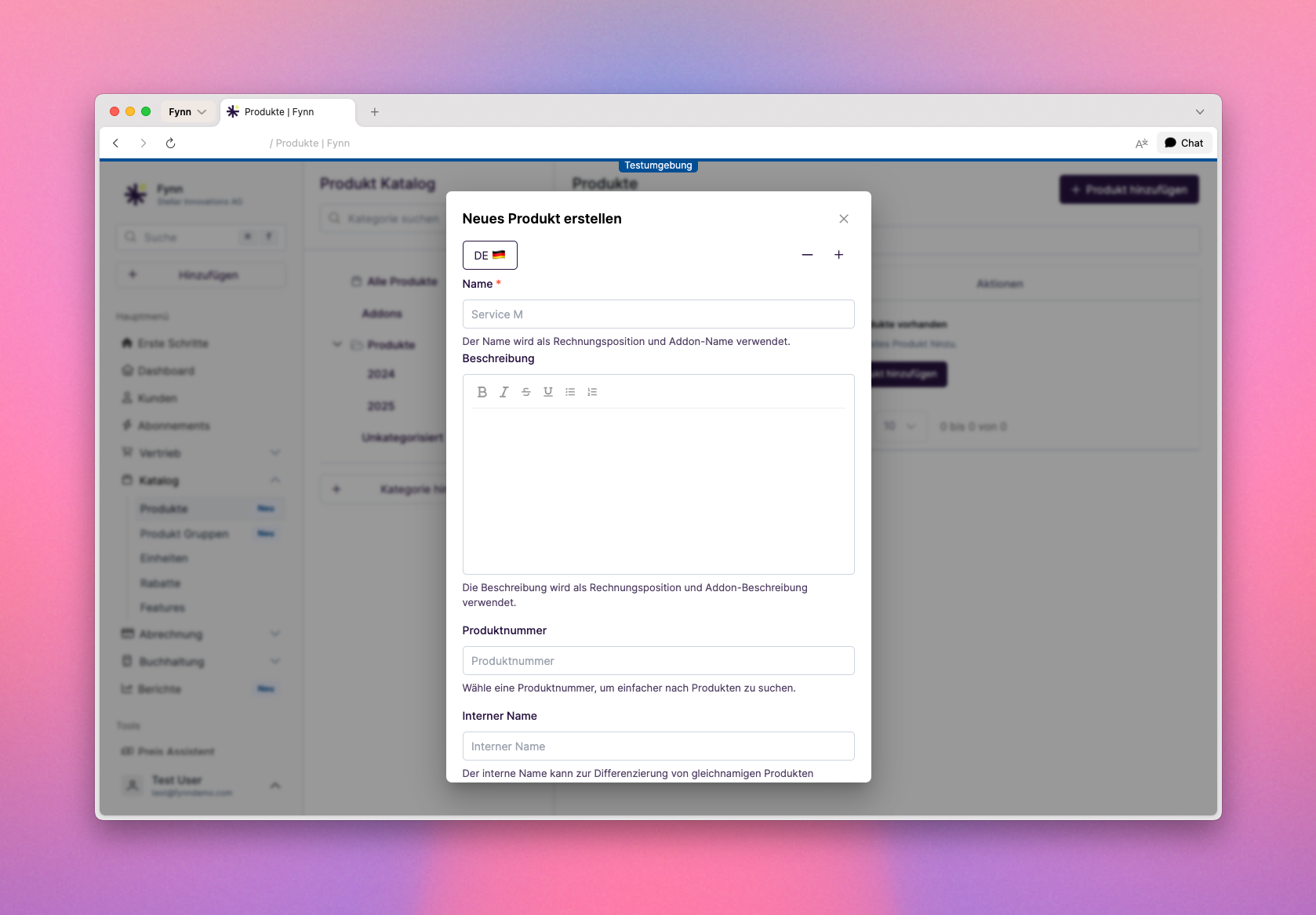 To create a new product, go to [Catalog > Products](https://preview.fynn.eu/catalogue/products) and click on Add Product.
For a new product, you need to provide the following information:
* Name: The name of the product that will be displayed in the product list and on invoices.
* Billable Unit: The unit in which the product is billed, e.g., "Piece", "Hours", or "Month".
* Tax Group: The tax group that applies to this product. This is important for the correct calculation of taxes on invoices.
Click on Create Product to create the product. The product will now be displayed in the product list and you can set the prices for the product.
## Archive Product
A product can be archived when it is no longer needed or no longer available.
When a product is archived, it can no longer be used for new subscriptions or invoices.
Archived products are no longer displayed in the product list or product selection.
Click on [Catalog > Products](https://preview.fynn.eu/catalogue/products) in the sidebar and select the product you want to archive.
Click on Archive to archive the product and confirm the action.
The product has been successfully archived and is no longer available in the product list or product selection.
Use the [Archive Product](/api-reference/product/archive-a-product) endpoint for this.
```bash theme={null}
PUT /catalog/products/{productId}/archive
```
Alternatively, you can [retrieve the product](/api-reference/product/get-a-product)
or [update the product via the API](/api-reference/product/update-a-product).
To create a new product, go to [Catalog > Products](https://preview.fynn.eu/catalogue/products) and click on Add Product.
For a new product, you need to provide the following information:
* Name: The name of the product that will be displayed in the product list and on invoices.
* Billable Unit: The unit in which the product is billed, e.g., "Piece", "Hours", or "Month".
* Tax Group: The tax group that applies to this product. This is important for the correct calculation of taxes on invoices.
Click on Create Product to create the product. The product will now be displayed in the product list and you can set the prices for the product.
## Archive Product
A product can be archived when it is no longer needed or no longer available.
When a product is archived, it can no longer be used for new subscriptions or invoices.
Archived products are no longer displayed in the product list or product selection.
Click on [Catalog > Products](https://preview.fynn.eu/catalogue/products) in the sidebar and select the product you want to archive.
Click on Archive to archive the product and confirm the action.
The product has been successfully archived and is no longer available in the product list or product selection.
Use the [Archive Product](/api-reference/product/archive-a-product) endpoint for this.
```bash theme={null}
PUT /catalog/products/{productId}/archive
```
Alternatively, you can [retrieve the product](/api-reference/product/get-a-product)
or [update the product via the API](/api-reference/product/update-a-product).