> ## Documentation Index
> Fetch the complete documentation index at: https://docs.fynn.eu/llms.txt
> Use this file to discover all available pages before exploring further.
# Manage Customers
> Create and manage customers.
## Create Customer
Create a new customer to create subscriptions and invoices.
There are several ways to open the create customer form.
The quickest way is to click on the plus icon at the top left and then select "Customer".
Alternatively, you can simply use `c` `n` as a keyboard shortcut.
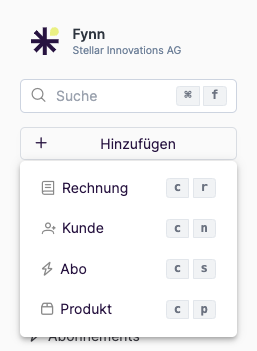 Otherwise, you can also click on ["Customers"](https://app.fynn.eu/customers) in the left navigation and then on "New".
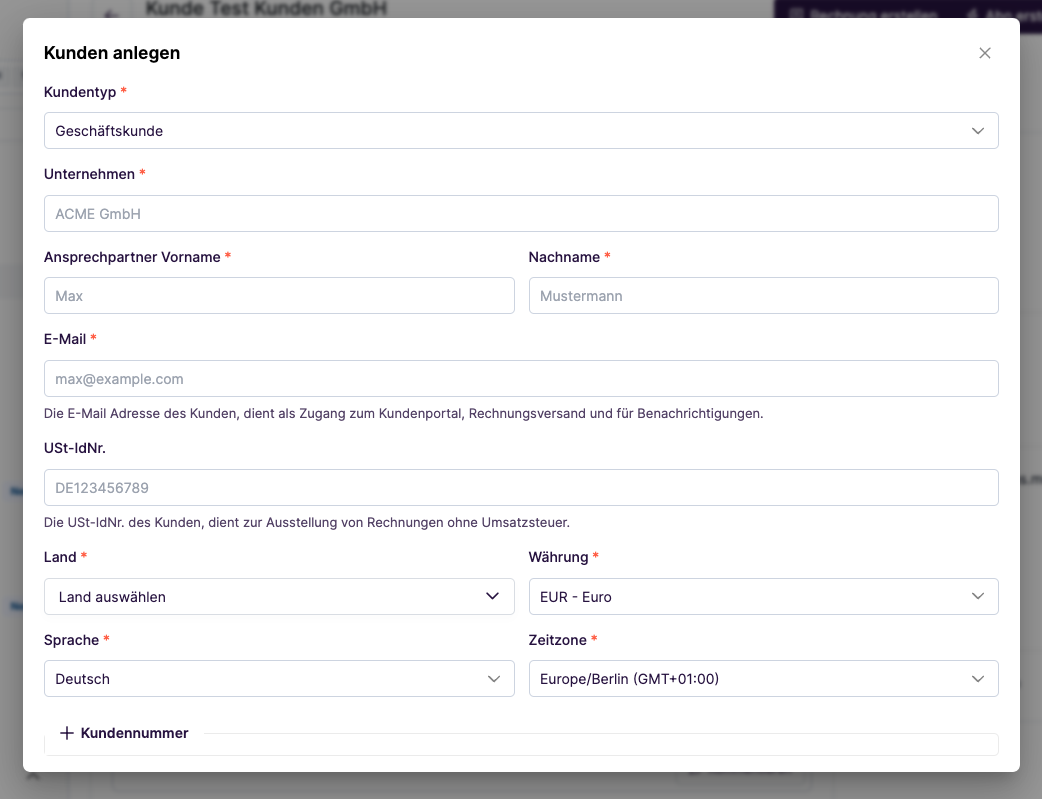
Fill in the customer details. Depending on the customer type (individual or company), different fields are required.
By default, a customer number is generated based on the [number range](/guide/tenant/number-ranges).
You can also set the customer number manually by clicking on "Customer Number" and entering your own number.
**Automatic language detection:** The customer language is automatically suggested based on the selected country.
Customers from DACH countries (DE, AT, CH) default to German, all others to English.
The language determines which language is used for [notifications](/en/guide/notifications/introduction) and [invoices](/en/guide/invoices/introduction).
You can always override the suggested language manually.
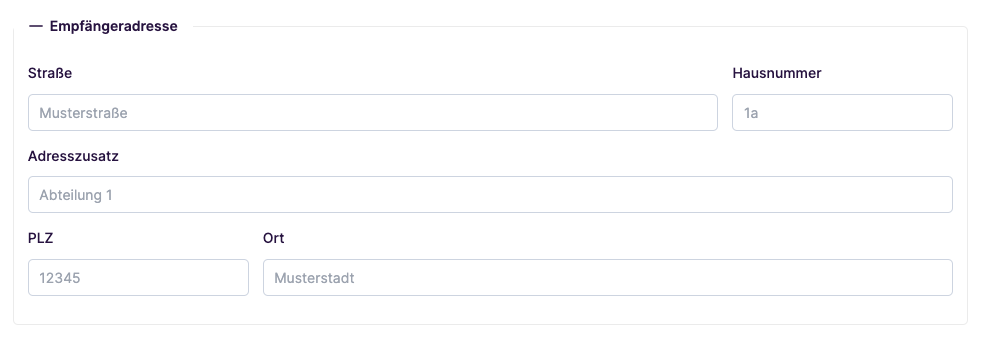
If the recipient address is not filled in, an empty address will be automatically created. You can edit this later.
The recipient address is used for creating [invoices](/guide/invoices) and [quotes](/guide/offers).
Otherwise, you can also click on ["Customers"](https://app.fynn.eu/customers) in the left navigation and then on "New".
Fill in the customer details. Depending on the customer type (individual or company), different fields are required.
By default, a customer number is generated based on the [number range](/guide/tenant/number-ranges).
You can also set the customer number manually by clicking on "Customer Number" and entering your own number.
**Automatic language detection:** The customer language is automatically suggested based on the selected country.
Customers from DACH countries (DE, AT, CH) default to German, all others to English.
The language determines which language is used for [notifications](/en/guide/notifications/introduction) and [invoices](/en/guide/invoices/introduction).
You can always override the suggested language manually.
If the recipient address is not filled in, an empty address will be automatically created. You can edit this later.
The recipient address is used for creating [invoices](/guide/invoices) and [quotes](/guide/offers).
 In some cases, it may be necessary for the billing email address to differ from the recipient address.
In this case, you can fill in the different billing information.
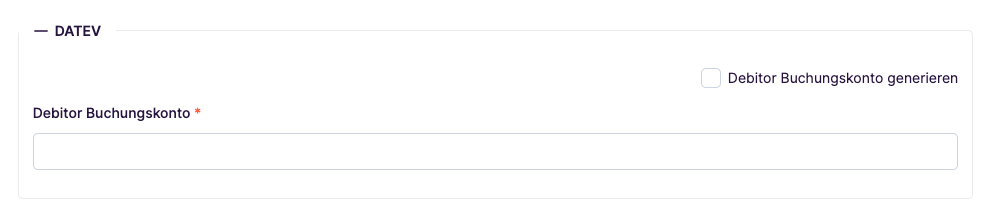
The DATEV integration is available as an add-on. Contact us if you would like to activate the DATEV integration.
If you have activated the DATEV integration, you can enter the DATEV debtor number here or have it automatically generated based on the [number range](/guide/tenant/number-ranges).
In some cases, it may be necessary for the billing email address to differ from the recipient address.
In this case, you can fill in the different billing information.
The DATEV integration is available as an add-on. Contact us if you would like to activate the DATEV integration.
If you have activated the DATEV integration, you can enter the DATEV debtor number here or have it automatically generated based on the [number range](/guide/tenant/number-ranges).
 Now click Create Customer to create the customer.
The customer has been successfully created. You can now create [subscriptions](/guide/subscriptions), [quotes](/guide/offers), and [invoices](/guide/invoices) for the customer.
Now click Create Customer to create the customer.
The customer has been successfully created. You can now create [subscriptions](/guide/subscriptions), [quotes](/guide/offers), and [invoices](/guide/invoices) for the customer.
 Use the [Create Customer](/api-reference/customer/create-customer) endpoint for this.
```bash theme={null}
POST /customers
```
Alternatively, you can [retrieve the customer](/api-reference/customer/get-customer)
or [update the customer via the API](/api-reference/customer/update-customer).
Customer data import is currently possible via the following methods:
* Creation via the [API](/api-reference/customer/create-customer)
* DATEV debtor master import
* Stripe import
If you are interested in a Stripe or DATEV debtor master import, or want to migrate from another subscription billing solution, please contact us.
## Edit Customer
After creating a customer, you can edit the customer details at any time.
In some cases, you may not be able to edit customer details if you do not have the appropriate permissions or if customers are read-only in the web interface.
To change the settings for read-only customers, see [Read-Only Customers](/guide/tenant/ui-defaults#Schreibgeschützte-Kunden).
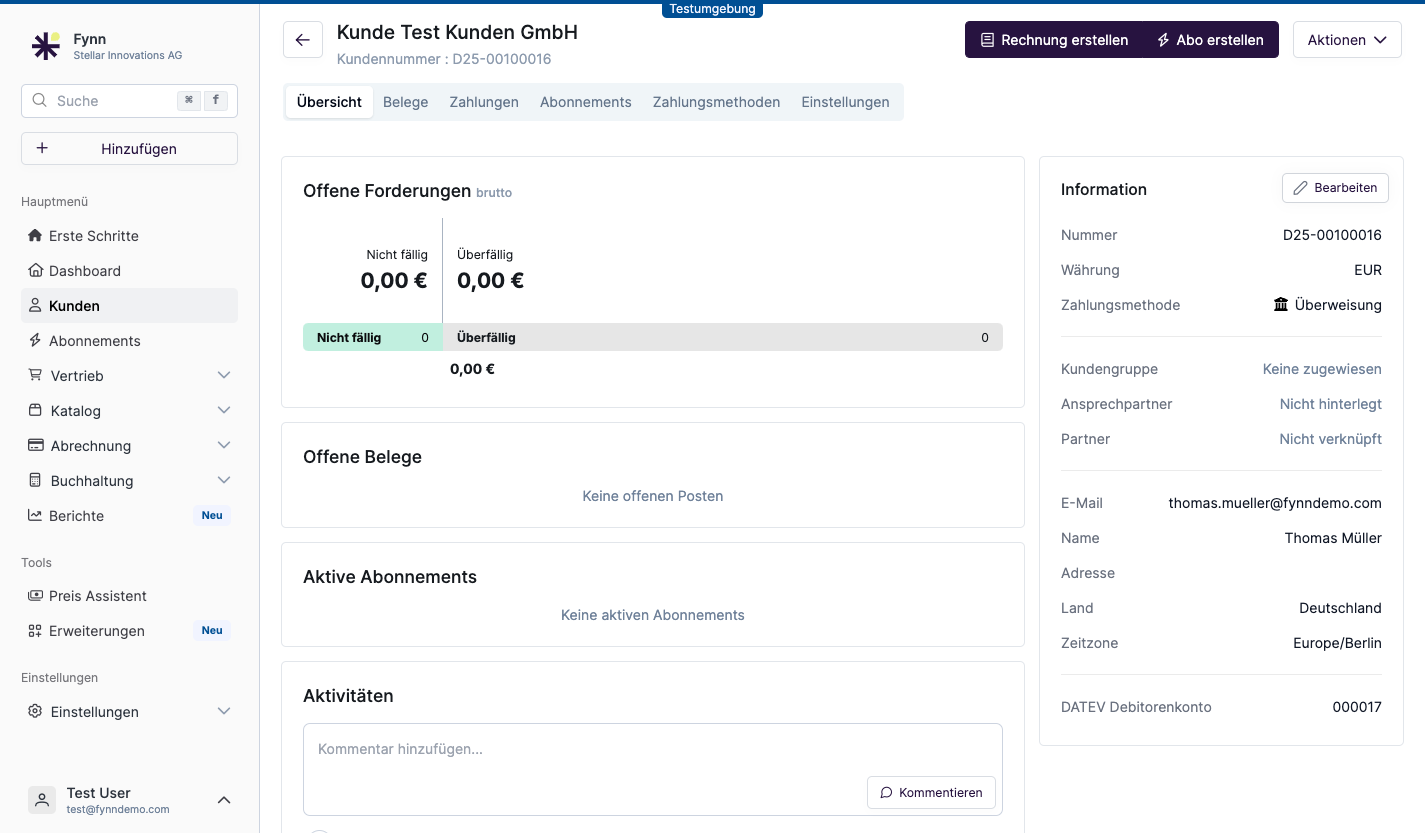
To edit customer details, click on "Customers" in the left navigation and select the customer you want to edit.
Now click on "Edit" on the right side to edit the customer details.
Adjust the customer details and click "Save" to apply the changes.
Use the [Create Customer](/api-reference/customer/create-customer) endpoint for this.
```bash theme={null}
POST /customers
```
Alternatively, you can [retrieve the customer](/api-reference/customer/get-customer)
or [update the customer via the API](/api-reference/customer/update-customer).
Customer data import is currently possible via the following methods:
* Creation via the [API](/api-reference/customer/create-customer)
* DATEV debtor master import
* Stripe import
If you are interested in a Stripe or DATEV debtor master import, or want to migrate from another subscription billing solution, please contact us.
## Edit Customer
After creating a customer, you can edit the customer details at any time.
In some cases, you may not be able to edit customer details if you do not have the appropriate permissions or if customers are read-only in the web interface.
To change the settings for read-only customers, see [Read-Only Customers](/guide/tenant/ui-defaults#Schreibgeschützte-Kunden).
To edit customer details, click on "Customers" in the left navigation and select the customer you want to edit.
Now click on "Edit" on the right side to edit the customer details.
Adjust the customer details and click "Save" to apply the changes.
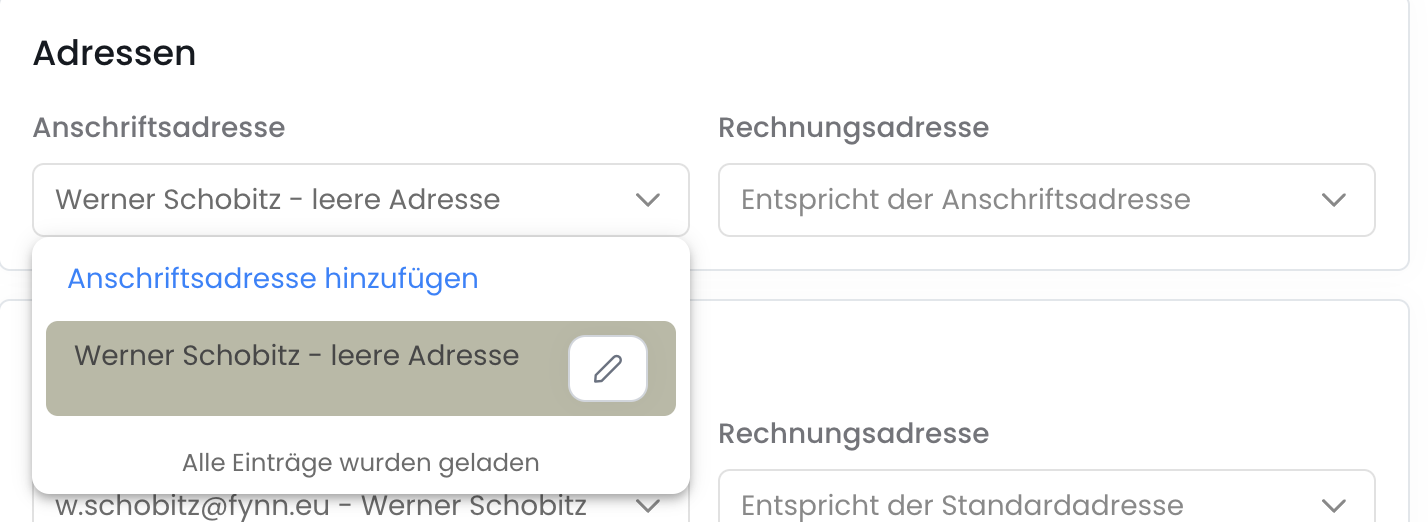
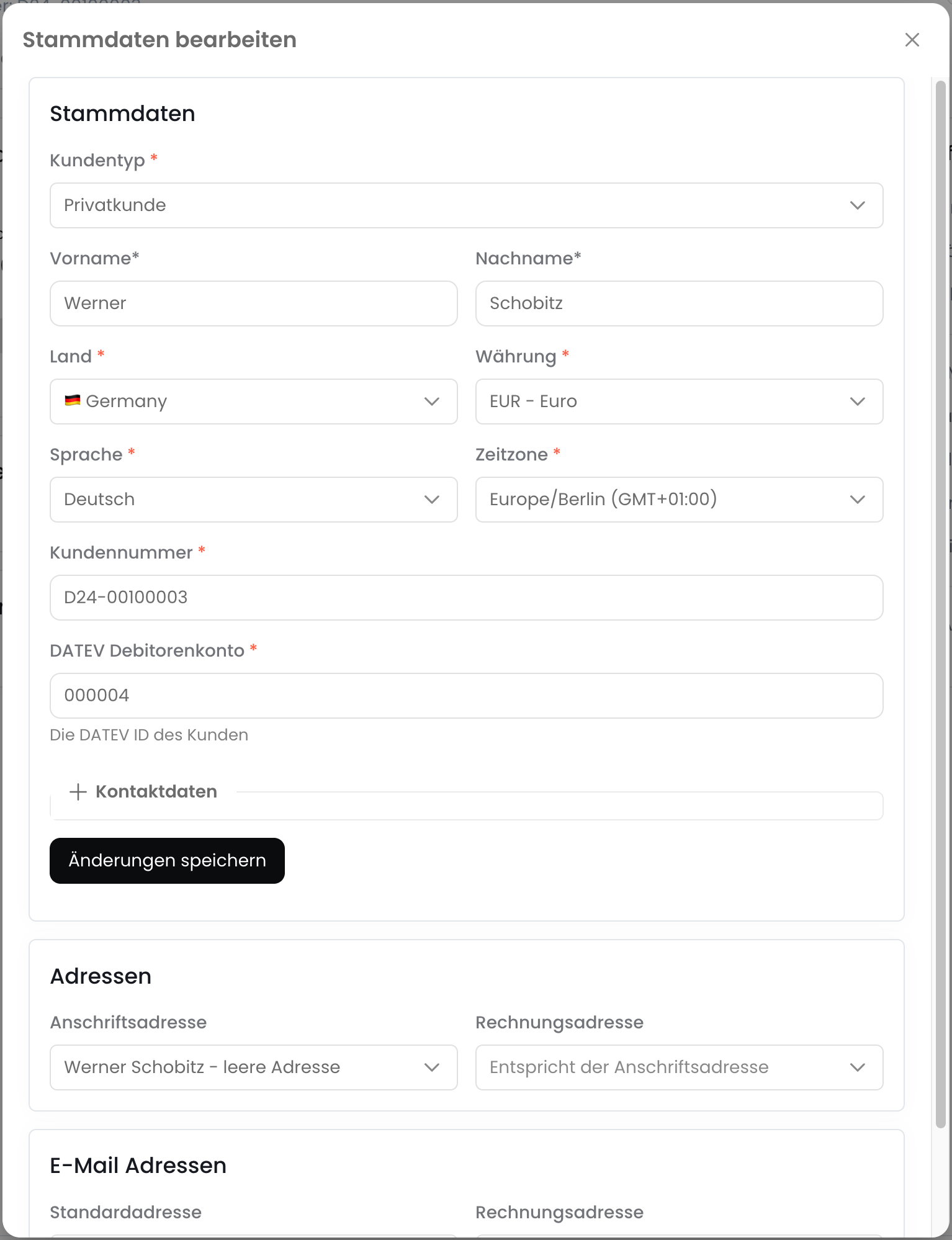 To edit the customer's address, stay in the same form and select the appropriate dropdown in the "Addresses" section.
Next to the address, you can edit the address using the "Pencil" icon.
When changing the address, the address will also be updated for existing subscriptions if it was selected on the subscription or if the default address should be used.
If you do not want this, please create a new address and explicitly select it on the subscription.
To edit the customer's address, stay in the same form and select the appropriate dropdown in the "Addresses" section.
Next to the address, you can edit the address using the "Pencil" icon.
When changing the address, the address will also be updated for existing subscriptions if it was selected on the subscription or if the default address should be used.
If you do not want this, please create a new address and explicitly select it on the subscription.
 ## Archive Customer
You can archive a customer to hide them in the customer overview.
Archived customers can be restored at a later time.
To archive a customer, click on "Customers" in the left navigation and select the customer you want to archive.
Now click on "Archive" on the right side to archive the customer.
Confirm archiving the customer by clicking "Archive".
Once archived, customers can be restored.
The customer has been successfully archived and will be hidden in the customer overview.
Use the [Archive Customer](/api-reference/customer/archive-customer) endpoint for this.
```bash theme={null}
PUT /customers/{customerId}/archive
```
## Delete Customer
You can delete a customer when they are no longer needed.
To delete a customer, the following conditions must be met:
* The customer must not have any active subscriptions
* The customer must not have any invoices
* The customer must not have any completed orders
* The customer must not have any payments
If any of the above criteria are not met, you can instead \[archive the customer]\(#Kunde archivieren).
Archived customers will be hidden in the customer overview.
To delete a customer, click on "Customers" in the left navigation and select the customer you want to delete.
Now click on "Delete" on the right side to delete the customer.
Confirm the deletion of the customer by clicking "Delete Permanently".
Once deleted, customers **cannot** be restored.
The customer has been successfully deleted.
Use the [Delete Customer](/api-reference/customer/delete-customer) endpoint for this.
```bash theme={null}
DELETE /customers/{customerId}
```
## Export Customers
To export customers as an Xlsx file, navigate to the customer overview and click "Export".
The export includes all customers created in your organization.
The export contains the following information:
* Customer master data
* Default billing address
* Default customer address
* Customer email address
* Billing email address
* Default payment method
## Archive Customer
You can archive a customer to hide them in the customer overview.
Archived customers can be restored at a later time.
To archive a customer, click on "Customers" in the left navigation and select the customer you want to archive.
Now click on "Archive" on the right side to archive the customer.
Confirm archiving the customer by clicking "Archive".
Once archived, customers can be restored.
The customer has been successfully archived and will be hidden in the customer overview.
Use the [Archive Customer](/api-reference/customer/archive-customer) endpoint for this.
```bash theme={null}
PUT /customers/{customerId}/archive
```
## Delete Customer
You can delete a customer when they are no longer needed.
To delete a customer, the following conditions must be met:
* The customer must not have any active subscriptions
* The customer must not have any invoices
* The customer must not have any completed orders
* The customer must not have any payments
If any of the above criteria are not met, you can instead \[archive the customer]\(#Kunde archivieren).
Archived customers will be hidden in the customer overview.
To delete a customer, click on "Customers" in the left navigation and select the customer you want to delete.
Now click on "Delete" on the right side to delete the customer.
Confirm the deletion of the customer by clicking "Delete Permanently".
Once deleted, customers **cannot** be restored.
The customer has been successfully deleted.
Use the [Delete Customer](/api-reference/customer/delete-customer) endpoint for this.
```bash theme={null}
DELETE /customers/{customerId}
```
## Export Customers
To export customers as an Xlsx file, navigate to the customer overview and click "Export".
The export includes all customers created in your organization.
The export contains the following information:
* Customer master data
* Default billing address
* Default customer address
* Customer email address
* Billing email address
* Default payment method
 ## Assign Personal Contact
You can assign a personal contact for each customer. This will be displayed on quotes, in the [customer portal](/en/guide/customers/customer-portal), and in the customer detail view.
## Settings
Individual settings per customer such as payment terms, automatic sending, and dunning can be found under [Customer Settings](/en/guide/customers/settings).
## Assign Personal Contact
You can assign a personal contact for each customer. This will be displayed on quotes, in the [customer portal](/en/guide/customers/customer-portal), and in the customer detail view.
## Settings
Individual settings per customer such as payment terms, automatic sending, and dunning can be found under [Customer Settings](/en/guide/customers/settings).