> ## Documentation Index
> Fetch the complete documentation index at: https://docs.fynn.eu/llms.txt
> Use this file to discover all available pages before exploring further.
# Dunning
> Automated dunning for invoices
With the dunning system, reminders and payment notifications for invoices can be created automatically.
Dunning can be activated for all invoices or only for selected invoices.
## Set Up Dunning
Dunning can be set up with simple rules.
Fundamentally, regardless of the type, a PDF document is created and sent to the customer via email.
The email templates and the created PDF document can be individually customized for each level.
### Payment Reminders
Open the settings and select the ["Dunning"](https://app.fynn.eu/settings/payment-failures) tab.
Select one of the predefined levels and the type of level.
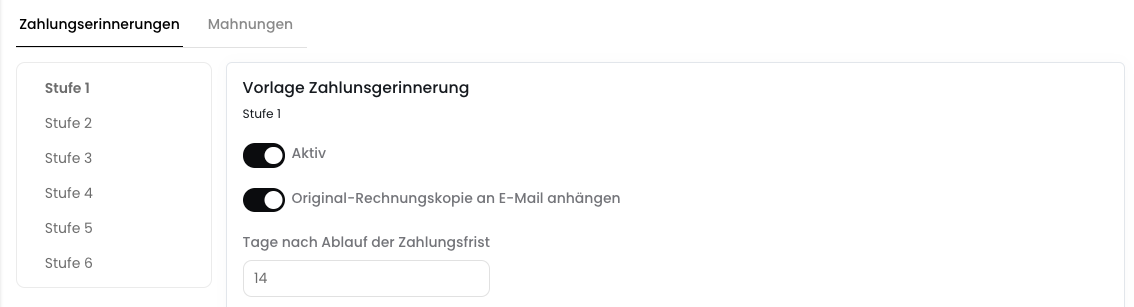 Choose whether the original invoice should be attached as a copy to the email.
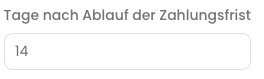
 Adjust the number of days the invoice must be overdue for the dunning level to be triggered.
If a dunning level has already been triggered, the number of days is calculated from the creation date of the dunning document of the last dunning level.
The payment term of the dunning level is not relevant.
Adjust the number of days the invoice must be overdue for the dunning level to be triggered.
If a dunning level has already been triggered, the number of days is calculated from the creation date of the dunning document of the last dunning level.
The payment term of the dunning level is not relevant.
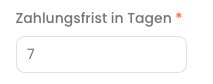
 Adjust the payment term. This is used to calculate the due date of the dunning level.
The payment term is added to the date the dunning level is executed.
Adjust the payment term. This is used to calculate the due date of the dunning level.
The payment term is added to the date the dunning level is executed.
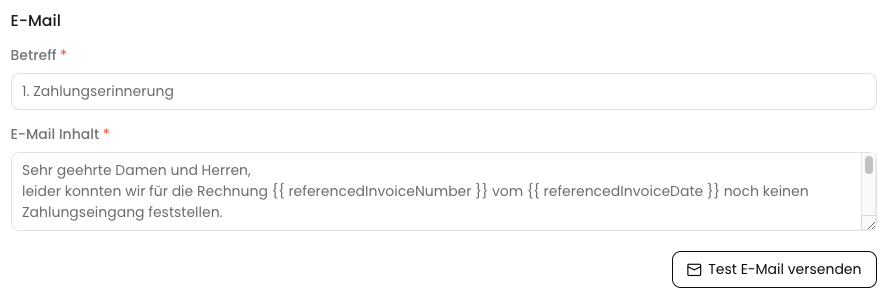
 The email template can be customized as desired. Generate a preview by clicking "Send Test Email".
At this time, the email can only contain text.
**The following placeholders are available**
* `{{ referencedInvoiceNumber }}` - Invoice number
* `{{ referencedInvoiceDate }}` - Invoice date
* `{{ totalGrossAmount }}` - Invoice amount (gross) (possibly including dunning fees)
* `{{ dueDate }}` - Due date of the payment reminder / dunning notice
* `{{ tenant.name }}` - Organization name from [general settings](https://app.fynn.eu/settings)
The email template can be customized as desired. Generate a preview by clicking "Send Test Email".
At this time, the email can only contain text.
**The following placeholders are available**
* `{{ referencedInvoiceNumber }}` - Invoice number
* `{{ referencedInvoiceDate }}` - Invoice date
* `{{ totalGrossAmount }}` - Invoice amount (gross) (possibly including dunning fees)
* `{{ dueDate }}` - Due date of the payment reminder / dunning notice
* `{{ tenant.name }}` - Organization name from [general settings](https://app.fynn.eu/settings)
 Customize the PDF template as desired. Generate a preview by clicking "Create Test PDF Document".
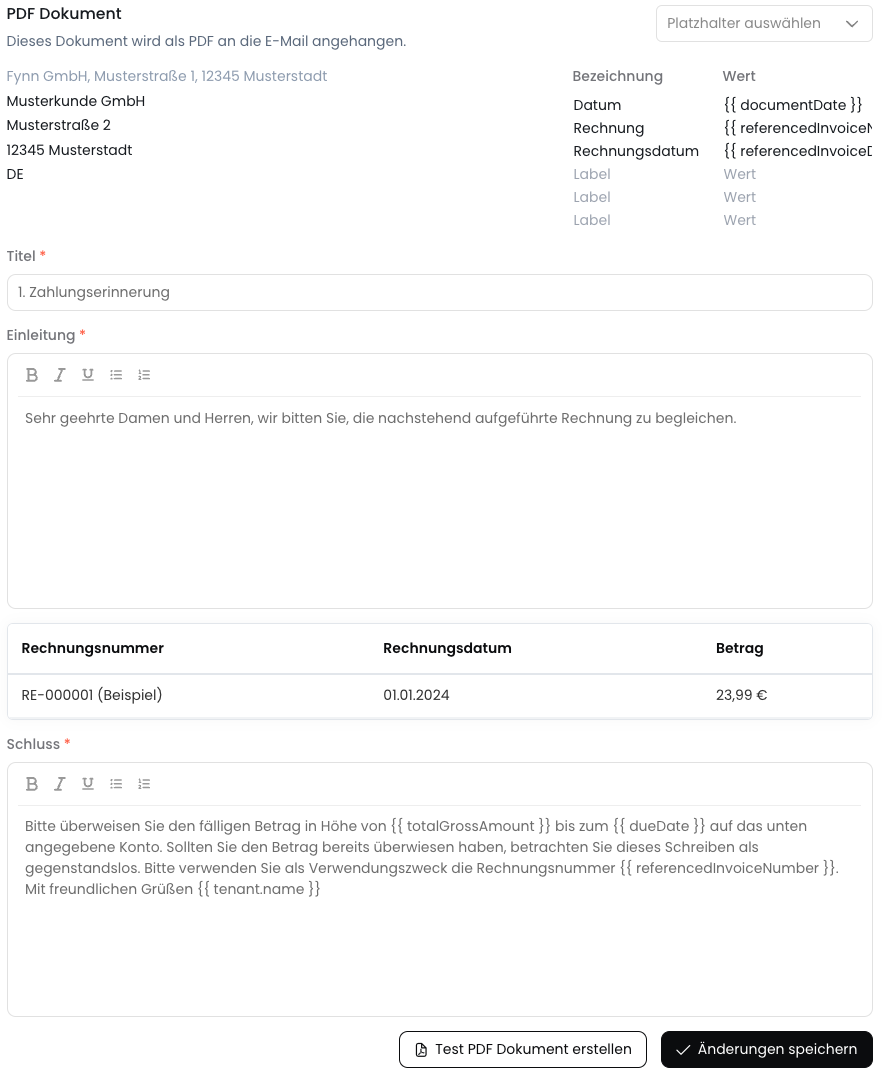 The dunning level can now be activated or deactivated via the "Active" toggle.
Now save the settings made by clicking "Save Changes".
The dunning level has been successfully set up and will be automatically triggered for **existing and future** invoices that meet the defined criteria.
Use the [Update Dunning Level](/api-reference/overduerule/update-overdue-rule) endpoint for this.
```bash theme={null}
PUT /dunning/overdue-rules/{id}
```
Alternatively, you can [retrieve dunning levels](/api-reference/overduerule/get-overdue-rules).
### Dunning Notices
Setting up dunning notices is analogous to payment reminders. Additionally, dunning fees can be charged and letter dispatch can be configured.
#### Dunning Fees
Dunning fees can be configured per dunning level. The dunning fees are added to the invoice amount (gross).
At this time, dunning fees are not included in accounting exports.
#### Letter Dispatch
Letter dispatch can be configured per dunning level.
The dunning PDF document is printed in color on one side and sent via our partner for letter dispatch.
Prices for letter dispatch can be found in the price list.
## Suspend Dunning
Suspending dunning can be set up on 3 levels:
1. Global
2. For individual customers
3. For individual invoices
When dunning is reactivated, all invoices that have become overdue in the meantime are taken into account.
The next dunning level that is calculated based on the current invoice status takes effect.
### Global
To suspend dunning globally, this can be configured in the settings (Settings > "Dunning" tab) on the respective dunning levels.
If dunning should be completely suspended, all dunning levels must be deactivated.
### For Individual Customers
In the customer master data, dunning can be suspended for the respective customer.
Open the customer master data for the customer for whom dunning should be suspended.
Suspend dunning for the customer by activating the "Disable Dunning" toggle.
Additionally, it is possible to deactivate dunning fees for individual customers via the "Apply Fees" toggle.
The dunning level can now be activated or deactivated via the "Active" toggle.
Now save the settings made by clicking "Save Changes".
The dunning level has been successfully set up and will be automatically triggered for **existing and future** invoices that meet the defined criteria.
Use the [Update Dunning Level](/api-reference/overduerule/update-overdue-rule) endpoint for this.
```bash theme={null}
PUT /dunning/overdue-rules/{id}
```
Alternatively, you can [retrieve dunning levels](/api-reference/overduerule/get-overdue-rules).
### Dunning Notices
Setting up dunning notices is analogous to payment reminders. Additionally, dunning fees can be charged and letter dispatch can be configured.
#### Dunning Fees
Dunning fees can be configured per dunning level. The dunning fees are added to the invoice amount (gross).
At this time, dunning fees are not included in accounting exports.
#### Letter Dispatch
Letter dispatch can be configured per dunning level.
The dunning PDF document is printed in color on one side and sent via our partner for letter dispatch.
Prices for letter dispatch can be found in the price list.
## Suspend Dunning
Suspending dunning can be set up on 3 levels:
1. Global
2. For individual customers
3. For individual invoices
When dunning is reactivated, all invoices that have become overdue in the meantime are taken into account.
The next dunning level that is calculated based on the current invoice status takes effect.
### Global
To suspend dunning globally, this can be configured in the settings (Settings > "Dunning" tab) on the respective dunning levels.
If dunning should be completely suspended, all dunning levels must be deactivated.
### For Individual Customers
In the customer master data, dunning can be suspended for the respective customer.
Open the customer master data for the customer for whom dunning should be suspended.
Suspend dunning for the customer by activating the "Disable Dunning" toggle.
Additionally, it is possible to deactivate dunning fees for individual customers via the "Apply Fees" toggle.
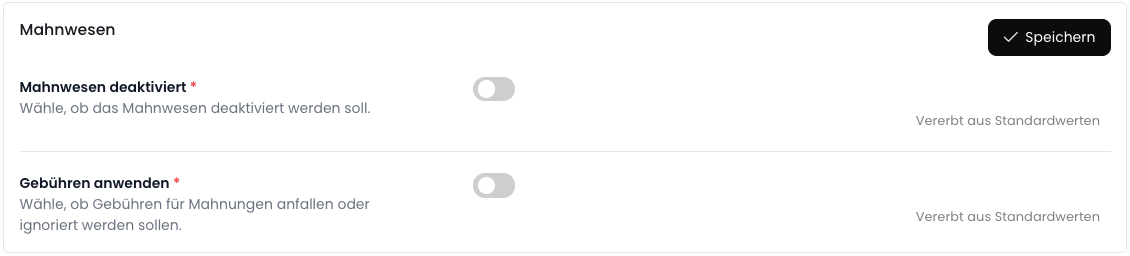 Save the changes by clicking "Save".
### For Individual Invoices
In the invoice details, dunning can be suspended for the respective invoice.
Open the invoice details for the invoice for which dunning should be suspended.
Suspend dunning for the invoice by selecting the "Pause" button below the invoice details in the "Dunning" section.
Any open payment reminders or dunning notices at this time will remain in place.
Save the changes by clicking "Save".
### For Individual Invoices
In the invoice details, dunning can be suspended for the respective invoice.
Open the invoice details for the invoice for which dunning should be suspended.
Suspend dunning for the invoice by selecting the "Pause" button below the invoice details in the "Dunning" section.
Any open payment reminders or dunning notices at this time will remain in place.
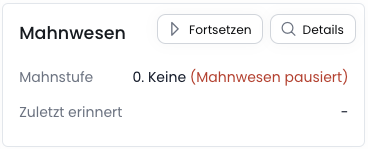
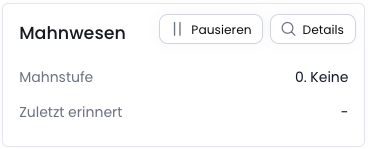 To reactivate dunning for the invoice, click the "Resume" button.
The next valid dunning level for the invoice is then determined and dunning continues accordingly.
To reactivate dunning for the invoice, click the "Resume" button.
The next valid dunning level for the invoice is then determined and dunning continues accordingly.
 ## Record Payment Receipt
## Examples
### Standard
**The following rule set is configured**
* The **1st payment reminder** should be sent after 14 days.
* The **2nd payment reminder** should be sent after 7 days.
* The **3rd payment reminder** should be sent after 7 days.
* The **1st dunning notice** should be sent after 7 days.
**The following process applies**
* The invoice is due on May 10.
* The 1st payment reminder is created on May 24.
* The 2nd payment reminder is created on May 31.
* The **3rd payment reminder** is created on June 7.
* The **1st dunning notice** is created on June 14.
### Suspended Dunning
**The following rule set is configured**
* The **1st payment reminder** should be sent after 14 days.
* The **2nd payment reminder** should be sent after 7 days.
* The **3rd payment reminder** should be sent after 7 days.
**The following process applies**
* The invoice is due on May 10.
* The 1st payment reminder is created on May 24.
* Dunning is deactivated on May 25.
* Dunning is reactivated on June 1.
* The 2nd payment reminder is created after reactivation on June 1, as the previous payment reminder is already more than 7 days overdue.
* The **3rd payment reminder** is created on June 8, as only then is the 2nd payment reminder more than 7 days overdue.
## Record Payment Receipt
## Examples
### Standard
**The following rule set is configured**
* The **1st payment reminder** should be sent after 14 days.
* The **2nd payment reminder** should be sent after 7 days.
* The **3rd payment reminder** should be sent after 7 days.
* The **1st dunning notice** should be sent after 7 days.
**The following process applies**
* The invoice is due on May 10.
* The 1st payment reminder is created on May 24.
* The 2nd payment reminder is created on May 31.
* The **3rd payment reminder** is created on June 7.
* The **1st dunning notice** is created on June 14.
### Suspended Dunning
**The following rule set is configured**
* The **1st payment reminder** should be sent after 14 days.
* The **2nd payment reminder** should be sent after 7 days.
* The **3rd payment reminder** should be sent after 7 days.
**The following process applies**
* The invoice is due on May 10.
* The 1st payment reminder is created on May 24.
* Dunning is deactivated on May 25.
* Dunning is reactivated on June 1.
* The 2nd payment reminder is created after reactivation on June 1, as the previous payment reminder is already more than 7 days overdue.
* The **3rd payment reminder** is created on June 8, as only then is the 2nd payment reminder more than 7 days overdue.