> ## Documentation Index
> Fetch the complete documentation index at: https://docs.fynn.eu/llms.txt
> Use this file to discover all available pages before exploring further.
# Features
> Create and manage features for your subscription products.
# Overview
The Features integration enables you to create and manage dynamic feature sets for your subscription products. These "features" are characteristics that distinguish your product or service. Once a subscription with such a product is created - whether via a checkout link or manually - the configured features are transferred to the subscription with the corresponding values.
### Use Cases
* **SaaS Solutions**: Provide your customers with feature sets such as user count (Quantity), function switches (e.g., "White Labeling enabled"), custom SLAs (Basic, Silver, Gold), or quantity ranges (e.g., "5 GB storage space").
* **Hosting or Server Products**: Define RAM, CPU cores, IP addresses as features for server offerings.
* **Special Add-on Features**: Add individual features (e.g., a personal onboarding session) to flexibly meet customer needs.
## Feature Types and Status
Features are configurable characteristics for your subscriptions that can be created in different types:
* **Switch**: Enable/disable certain functionalities.
* **Quantity**: Selection of predefined quantities (e.g., "5 Users", "10 Users").
* **Custom**: Selection from predefined text values (e.g., "SLA Basic", "SLA Silver", "SLA Gold").
* **Range**: Manual entry of a value within a certain range, optionally "unlimited" on one or both sides.
Each feature also has a status:
* **Draft**: The feature can be assigned to products but is not yet transferred to subscriptions.
* **Active**: The feature is transferred when creating a new subscription.
* **Archived**: The feature is no longer available for new subscriptions but remains unchanged in existing subscriptions.
**Tip:** With these statuses, you can plan, test, and later activate features without affecting existing subscriptions.
## Example of Using Features
Imagine you run a SaaS solution with the "Professional" product. This product has the switch feature "White Labeling" by default.
For the "yearly" price, you add a custom feature "SLA Gold".
When a customer books the "Professional" product with the "yearly" price, they **automatically** receive both features: White Labeling from the product and SLA Gold from the price.
## Creating a New Feature
Select **Features** from the main menu to display the list of features. Click **New**.
Fill in the fields:
* **Name**: The name of the feature, e.g., "White Labeling". This is displayed internally and may also be visible in the customer portal in the future.
* **Type**: Choose between Switch, Quantity, Custom, or Range. Depending on the type, additional settings are available.
* **Description**: A short description of the feature for easier internal assignment.
* **Status**: Choose between Draft, Active, or Archived.
* **Unit**: An optional unit, e.g., "User", "GB", "SLA", used for Quantity or Range, enabling better readability and understanding.
* **Options**: Depending on the type, additional settings are available, e.g., for Quantity the selection of quantities, for Range the definition of the range, or for Custom the selection of values.
* **Valid From**: An optional date from which the feature is active and transferred to new subscriptions. Not relevant for existing subscriptions.
* **Valid Until**: An optional date until which the feature is active and transferred to new subscriptions. Not relevant for existing subscriptions.
* **Technical ID**: An optional technical ID that identifies the feature in your system, e.g., "global.white-labeling".
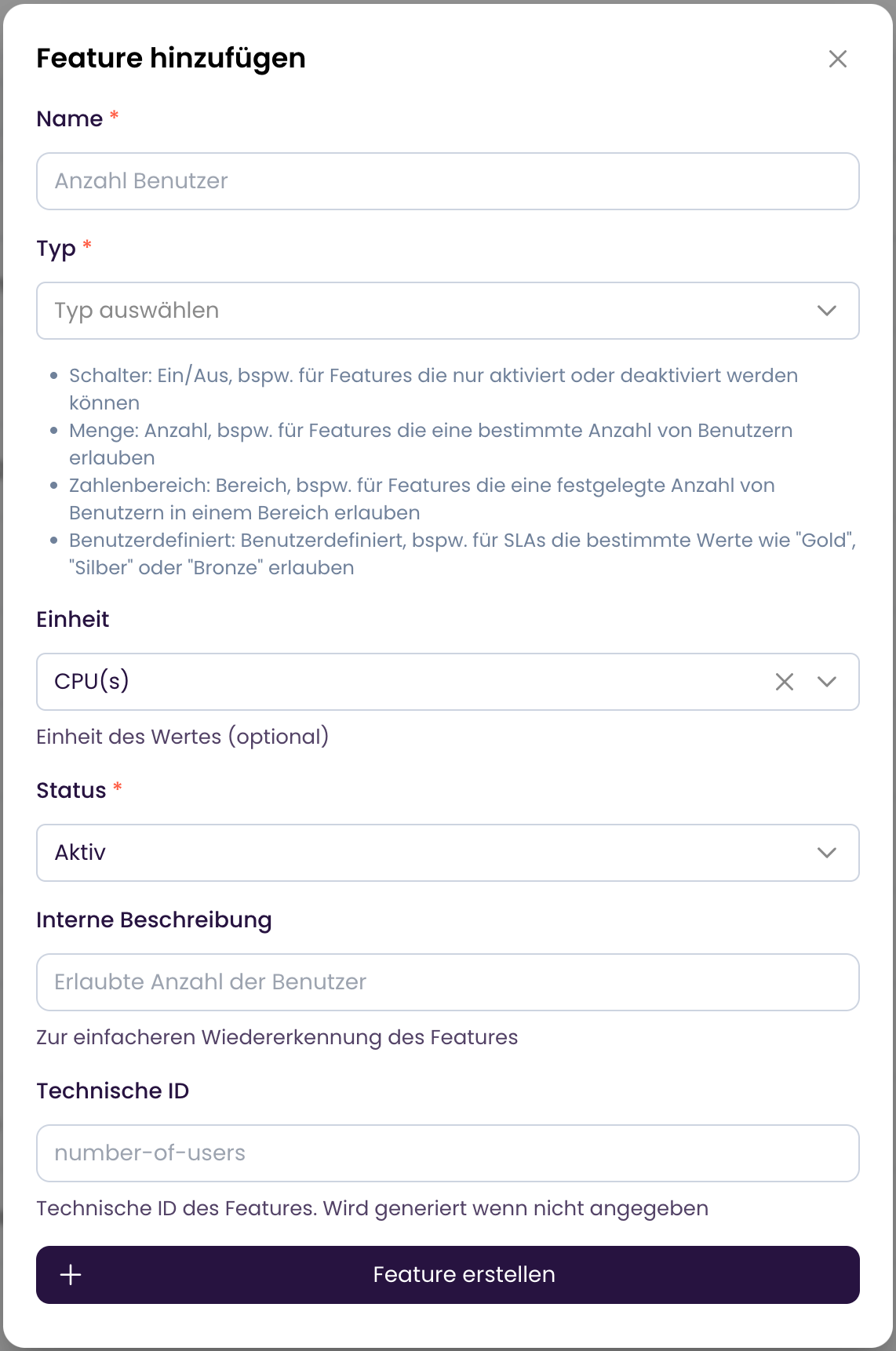 Click **Create Feature** to create the feature.
The feature is now ready for assignment to products and prices.
Use the [Create Feature](/api-reference/feature/create-feature) endpoint for this.
```bash theme={null}
POST /entitlements/features
```
Alternatively, you can [retrieve features](/api-reference/features/get-features) to get the list of features.
## Assigning Features
By assigning features to products or specific prices, you ensure that when a subscription is created, the relevant characteristics are automatically transferred.
* Features on the **product** are always included.
* Features on the **price** can add additional or different properties. This allows you to define additional features for yearly plans, for example.
* If a feature overlaps on the product and price, the definition from the price takes precedence.
Additionally, start and end dates can be set for features to prepare releases or time-limited promotions.
Click **Create Feature** to create the feature.
The feature is now ready for assignment to products and prices.
Use the [Create Feature](/api-reference/feature/create-feature) endpoint for this.
```bash theme={null}
POST /entitlements/features
```
Alternatively, you can [retrieve features](/api-reference/features/get-features) to get the list of features.
## Assigning Features
By assigning features to products or specific prices, you ensure that when a subscription is created, the relevant characteristics are automatically transferred.
* Features on the **product** are always included.
* Features on the **price** can add additional or different properties. This allows you to define additional features for yearly plans, for example.
* If a feature overlaps on the product and price, the definition from the price takes precedence.
Additionally, start and end dates can be set for features to prepare releases or time-limited promotions.
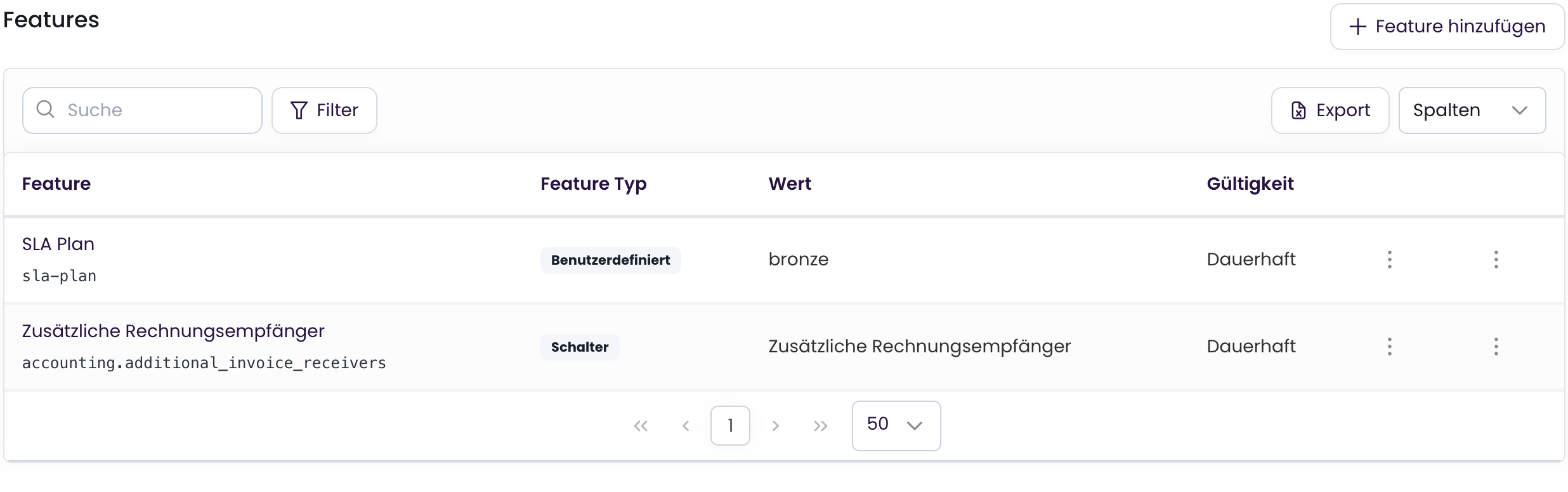 ### Adding a Feature to a Product
Navigate to **Products** and select the desired product.
Select the desired feature from the list, set the value, and optionally the validity.
### Adding a Feature to a Product
Navigate to **Products** and select the desired product.
Select the desired feature from the list, set the value, and optionally the validity.
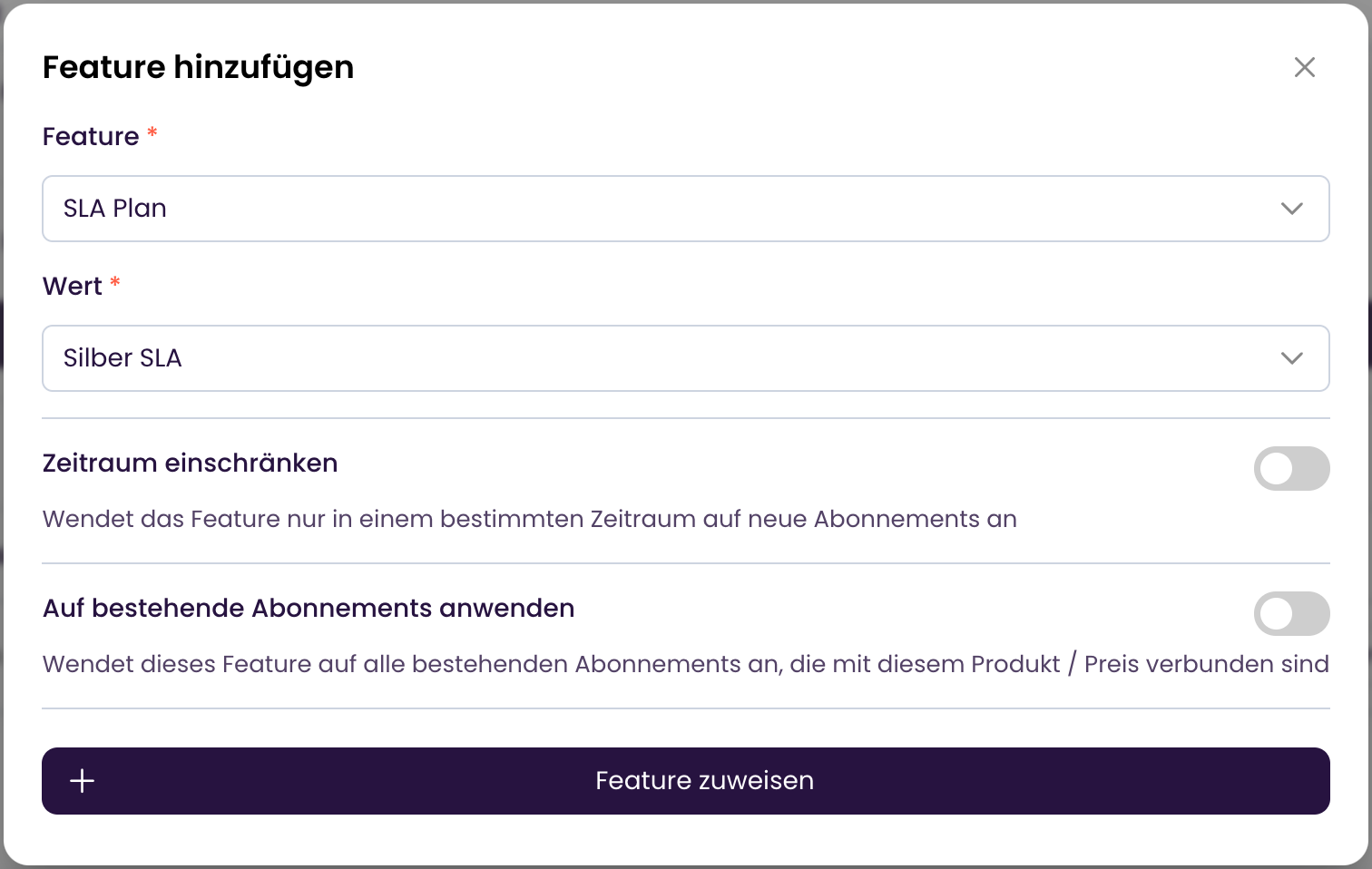 Click **Save** to assign the feature to the product.
If the feature is not time-restricted, it will be transferred to all new subscriptions with this product from now on.
If the feature is time-restricted, it will only be transferred to new subscriptions created within that period.
The feature must be active to be transferred to new subscriptions. It must not be archived or in draft.
Use the [Add Feature to Product](/api-reference/feature/assign-feature) endpoint for this.
```bash theme={null}
POST /entitlement/feature-assignments
```
### Adding a Feature to a Price (optional)
Navigate to **Products** and select the desired product.
Select the desired price and click **Edit**.
Select the desired feature from the list, set the value, and optionally the validity.
Click **Save** to assign the feature to the price.
If the feature is not time-restricted, it will be transferred to all new subscriptions with this product & price from now on.
If the feature is time-restricted, it will only be transferred to new subscriptions created within that period.
The feature must be active to be transferred to new subscriptions. It must not be archived or in draft.
Use the [Add Feature to Price](/api-reference/feature/assign-feature) endpoint for this.
```bash theme={null}
POST /entitlement/feature-assignments
```
## Subscriptions and Features
### Creating a New Subscription with Features
When creating a new subscription or adding a new product via the web app or API, all features from the product and price are automatically transferred.
Features are only transferred when creating a subscription. Changes to features in the product or price do not affect existing subscriptions.
### Adding Individual Features
In the subscription, you can view all transferred features, activate/deactivate them, or add additional features that are not tied to a product or price.
1. Open the desired subscription.
2. Navigate to the **Features** tab.
3. Here you can see all features, their origin, and their status.
4. Click **Add New Feature** to add an individual feature.
5. Save the changes.
Use the [Add Feature to Product](/api-reference/feature/assign-feature) endpoint for this.
```bash theme={null}
POST /entitlement/feature-assignments
```
### Retrieving Features in a Subscription
There are several ways to retrieve the features of a subscription:
#### Subscribe to Webhook
We recommend subscribing to the `entitlement.state.updated` webhook to be notified of changes in features.
A webhook is triggered when adding or removing a feature (manually or through product change) in the subscription.
If a feature expires or is activated/deactivated by the "valid from" or "valid until" date, a webhook is also triggered.
Example Payload:
```json theme={null}
{
"event": {
"id": "ad9f8b8b-8b8b-8b8b-8b8b-8b8b8b8b8b8b",
"type": "entitlement.state.updated",
"version": "v1",
"createdAt": "2022-01-01T12:00:00Z"
},
"data": {
"customer": {
"id": "ad8f8b8b-8b8b-8b8b-8b8b-8b8b8b8b8b8b",
"customerNumber": "CUS-1234",
[...]
},
"subscription": {
"id": "ad8f8b8b-8b8b-8b8b-8b8b-8b8b8b8b8b8b",
"number": "SUB-1234",
[...]
},
"entitlements": [
{
"entitlementId": "ad8f8b8b-8b8b-8b8b-8b8b-8b8b8b8b8b8b",
"featureId": "included-users",
"featureName": "Included Users",
"value": "5"
},
{
"entitlementId": "ad8f8b8b-8b8b-8b8b-8b8b-8b8b8b8b8b8b",
"featureId": "addon-b",
"featureName": "Addon B",
"value": "true"
},
{
"entitlementId": "ad8f8b8b-8b8b-8b8b-8b8b-8b8b8b8b8b8b",
"featureId": "sla-level",
"featureName": "SLA Level",
"value": "gold"
}
]
}
}
```
#### Retrieve via API Endpoint
Alternatively, you can retrieve the features of a subscription via the [Subscription Endpoint](/api-reference/entitlement/get-available-features).
The endpoint is limited to 240 requests per minute per organization. We therefore recommend using the webhook.
## Entitlement Status
Each entitlement in a subscription has a computed status that indicates its current state:
* **Active**: The entitlement is enabled and within its validity period. The customer can use the feature.
* **Pending**: The entitlement is enabled, but the `validFrom` date is in the future. The feature will automatically become active once the date is reached.
* **Disabled**: The entitlement has been manually disabled.
* **Expired**: The `validUntil` date has passed. The entitlement was active but is no longer valid.
The status is automatically computed based on the `active` flag and validity dates (`validFrom`, `validUntil`). When changes occur, an `entitlement.state.updated` webhook is triggered.
### Example API Response
```json theme={null}
{
"id": "550e8400-e29b-41d4-a716-446655440000",
"feature": {
"id": "white-labeling",
"name": "White Labeling"
},
"value": "true",
"validFrom": "2026-03-01T00:00:00Z",
"validUntil": null,
"active": true,
"status": "pending"
}
```
In this example, the entitlement is enabled (`active: true`), but since `validFrom` is in the future, the status is `pending`.
## Retrieving Customer Entitlements
To retrieve a customer's entitlements, the customer must authenticate, e.g., via [OAuth2](/guide/oauth2/introduction) or a generated access token.
The currently active entitlements are then retrieved via `https://coreapi.io/customer-entitlements` with the following output:
```json theme={null}
{
"subscriptionEntitlements": {
"": [
"my-feature1",
"my-feature2",
"my-feature3",
"my-feature4"
]
},
"entitlements": [
"my-feature1",
"my-feature2",
"my-feature3",
"my-feature4"
]
}
```
Under `entitlements`, all entitlements from the subscriptions are merged.
## API Documentation Reference
A detailed reference of all endpoints, parameters, and returns can be found in our [Features API Documentation](/api-reference/feature) and [Entitlements API Documentation](/api-reference/entitlement).
With the Features integration, you can flexibly and scalably design the feature scope of your products and dynamically deliver them to your customers. Through the combination of product and price features as well as individual customization in the subscription itself, you have all the options to optimally tailor your offering to your customers' needs.
## Webhooks
The following webhooks are available for the Features integration:
* `feature.created` - A new feature was created.
* `feature.updated` - A feature was updated.
* `feature.archived` - A feature was archived.
* `entitlement.state.updated` - The currently valid features for a subscription have been updated (e.g., through: a change in the subscription; the features; a feature was added or removed by "valid from" / "valid until"; a product was cancelled / adjusted and its features accordingly). See [Retrieving Features in a Subscription](#subscribe-to-webhook).
Click **Save** to assign the feature to the product.
If the feature is not time-restricted, it will be transferred to all new subscriptions with this product from now on.
If the feature is time-restricted, it will only be transferred to new subscriptions created within that period.
The feature must be active to be transferred to new subscriptions. It must not be archived or in draft.
Use the [Add Feature to Product](/api-reference/feature/assign-feature) endpoint for this.
```bash theme={null}
POST /entitlement/feature-assignments
```
### Adding a Feature to a Price (optional)
Navigate to **Products** and select the desired product.
Select the desired price and click **Edit**.
Select the desired feature from the list, set the value, and optionally the validity.
Click **Save** to assign the feature to the price.
If the feature is not time-restricted, it will be transferred to all new subscriptions with this product & price from now on.
If the feature is time-restricted, it will only be transferred to new subscriptions created within that period.
The feature must be active to be transferred to new subscriptions. It must not be archived or in draft.
Use the [Add Feature to Price](/api-reference/feature/assign-feature) endpoint for this.
```bash theme={null}
POST /entitlement/feature-assignments
```
## Subscriptions and Features
### Creating a New Subscription with Features
When creating a new subscription or adding a new product via the web app or API, all features from the product and price are automatically transferred.
Features are only transferred when creating a subscription. Changes to features in the product or price do not affect existing subscriptions.
### Adding Individual Features
In the subscription, you can view all transferred features, activate/deactivate them, or add additional features that are not tied to a product or price.
1. Open the desired subscription.
2. Navigate to the **Features** tab.
3. Here you can see all features, their origin, and their status.
4. Click **Add New Feature** to add an individual feature.
5. Save the changes.
Use the [Add Feature to Product](/api-reference/feature/assign-feature) endpoint for this.
```bash theme={null}
POST /entitlement/feature-assignments
```
### Retrieving Features in a Subscription
There are several ways to retrieve the features of a subscription:
#### Subscribe to Webhook
We recommend subscribing to the `entitlement.state.updated` webhook to be notified of changes in features.
A webhook is triggered when adding or removing a feature (manually or through product change) in the subscription.
If a feature expires or is activated/deactivated by the "valid from" or "valid until" date, a webhook is also triggered.
Example Payload:
```json theme={null}
{
"event": {
"id": "ad9f8b8b-8b8b-8b8b-8b8b-8b8b8b8b8b8b",
"type": "entitlement.state.updated",
"version": "v1",
"createdAt": "2022-01-01T12:00:00Z"
},
"data": {
"customer": {
"id": "ad8f8b8b-8b8b-8b8b-8b8b-8b8b8b8b8b8b",
"customerNumber": "CUS-1234",
[...]
},
"subscription": {
"id": "ad8f8b8b-8b8b-8b8b-8b8b-8b8b8b8b8b8b",
"number": "SUB-1234",
[...]
},
"entitlements": [
{
"entitlementId": "ad8f8b8b-8b8b-8b8b-8b8b-8b8b8b8b8b8b",
"featureId": "included-users",
"featureName": "Included Users",
"value": "5"
},
{
"entitlementId": "ad8f8b8b-8b8b-8b8b-8b8b-8b8b8b8b8b8b",
"featureId": "addon-b",
"featureName": "Addon B",
"value": "true"
},
{
"entitlementId": "ad8f8b8b-8b8b-8b8b-8b8b-8b8b8b8b8b8b",
"featureId": "sla-level",
"featureName": "SLA Level",
"value": "gold"
}
]
}
}
```
#### Retrieve via API Endpoint
Alternatively, you can retrieve the features of a subscription via the [Subscription Endpoint](/api-reference/entitlement/get-available-features).
The endpoint is limited to 240 requests per minute per organization. We therefore recommend using the webhook.
## Entitlement Status
Each entitlement in a subscription has a computed status that indicates its current state:
* **Active**: The entitlement is enabled and within its validity period. The customer can use the feature.
* **Pending**: The entitlement is enabled, but the `validFrom` date is in the future. The feature will automatically become active once the date is reached.
* **Disabled**: The entitlement has been manually disabled.
* **Expired**: The `validUntil` date has passed. The entitlement was active but is no longer valid.
The status is automatically computed based on the `active` flag and validity dates (`validFrom`, `validUntil`). When changes occur, an `entitlement.state.updated` webhook is triggered.
### Example API Response
```json theme={null}
{
"id": "550e8400-e29b-41d4-a716-446655440000",
"feature": {
"id": "white-labeling",
"name": "White Labeling"
},
"value": "true",
"validFrom": "2026-03-01T00:00:00Z",
"validUntil": null,
"active": true,
"status": "pending"
}
```
In this example, the entitlement is enabled (`active: true`), but since `validFrom` is in the future, the status is `pending`.
## Retrieving Customer Entitlements
To retrieve a customer's entitlements, the customer must authenticate, e.g., via [OAuth2](/guide/oauth2/introduction) or a generated access token.
The currently active entitlements are then retrieved via `https://coreapi.io/customer-entitlements` with the following output:
```json theme={null}
{
"subscriptionEntitlements": {
"": [
"my-feature1",
"my-feature2",
"my-feature3",
"my-feature4"
]
},
"entitlements": [
"my-feature1",
"my-feature2",
"my-feature3",
"my-feature4"
]
}
```
Under `entitlements`, all entitlements from the subscriptions are merged.
## API Documentation Reference
A detailed reference of all endpoints, parameters, and returns can be found in our [Features API Documentation](/api-reference/feature) and [Entitlements API Documentation](/api-reference/entitlement).
With the Features integration, you can flexibly and scalably design the feature scope of your products and dynamically deliver them to your customers. Through the combination of product and price features as well as individual customization in the subscription itself, you have all the options to optimally tailor your offering to your customers' needs.
## Webhooks
The following webhooks are available for the Features integration:
* `feature.created` - A new feature was created.
* `feature.updated` - A feature was updated.
* `feature.archived` - A feature was archived.
* `entitlement.state.updated` - The currently valid features for a subscription have been updated (e.g., through: a change in the subscription; the features; a feature was added or removed by "valid from" / "valid until"; a product was cancelled / adjusted and its features accordingly). See [Retrieving Features in a Subscription](#subscribe-to-webhook).