> ## Documentation Index
> Fetch the complete documentation index at: https://docs.fynn.eu/llms.txt
> Use this file to discover all available pages before exploring further.
# Digest Emails
> Receive periodic summaries with the most important metrics and tasks of your organization.
## Overview
Digest emails consolidate the most important metrics and outstanding tasks of your organization into a single email. This gives you a compact overview without having to log into the platform.
Each user can individually configure which information they want to receive and how frequently digest emails are sent.
## User Account Area
The digest email settings are located in your personal user account area. There you can manage your profile and configure your notification preferences.
### Configure Notifications
Click on your avatar or name in the top navigation and select **My Profile**.
Choose the **Notifications** tab in the left sidebar.
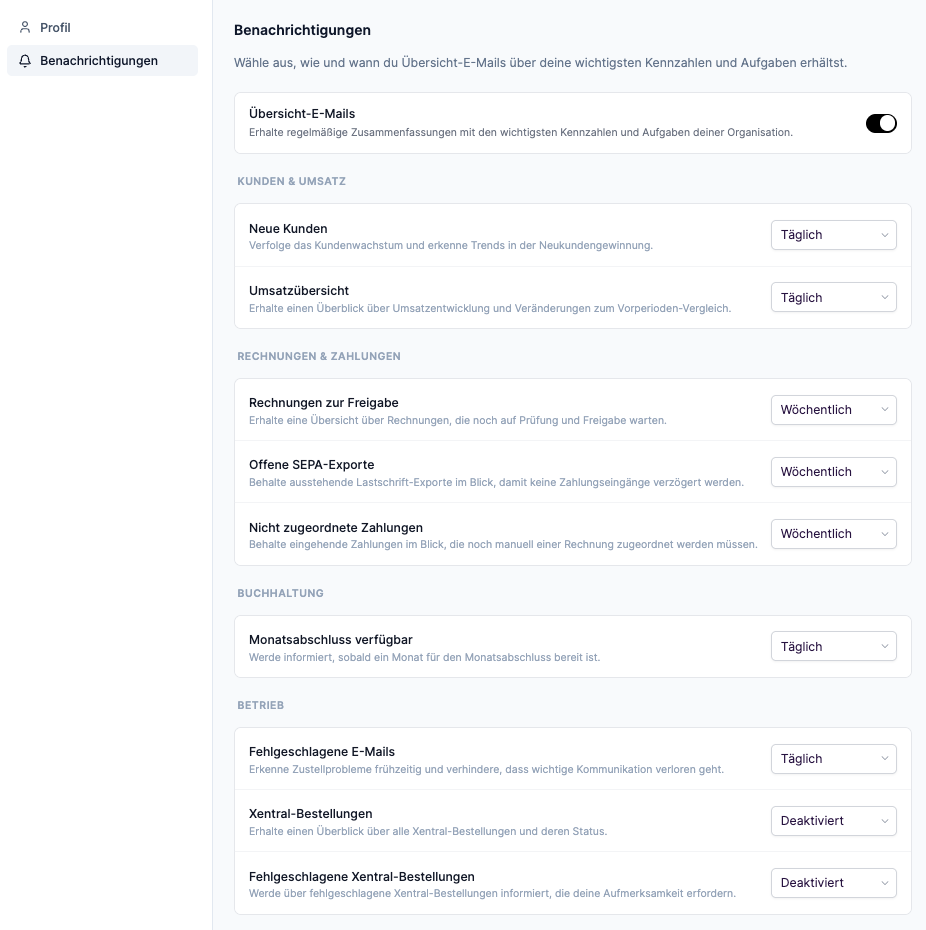 Enable the **Digest Emails** master toggle to receive periodic summaries. If the toggle is disabled, no digest emails will be sent.
Select the desired frequency for each available section:
* **Daily** — Receive the section in daily emails (Monday through Friday)
* **Weekly** — Receive the section once per week
* **Disabled** — The section will not be included in your emails
Which sections are available to you depends on your permissions. You will only see sections for which your user role has the required rights. If your role changes, the available sections are automatically adjusted.
## Available Sections
Sections are organized into categories. Each section can be individually enabled or disabled.
### Customers & Revenue
Track customer growth and identify trends in new customer acquisition. Shows the number of new customers in the selected period.
Get an overview of revenue development and changes compared to the previous period.
### Invoices & Payments
Get an overview of invoices that are still awaiting review and approval.
Keep track of outstanding direct debit exports to prevent delayed payment receipts.
Keep track of incoming payments that still need to be manually assigned to an invoice.
The notification for pending SEPA XML exports is now managed through digest emails and can be individually configured per user. Previously, this information was sent system-wide.
### Accounting
Get notified as soon as a month is ready for closing.
### Operations
Detect delivery problems early and prevent important communication from being lost.
Get an overview of all Xentral orders and their status.
Get notified about failed Xentral orders that require your attention.
The Xentral sections are only visible when the Xentral integration is enabled for your tenant.
## Frequency & Delivery
### Daily Emails
* Sent every weekday (Monday through Friday)
* Contains data from the last 24 hours
* Comparison with the previous day
### Weekly Emails
* Sent every Monday
* Contains data from the last 7 days
* Comparison with the previous week
If you have both daily and weekly sections enabled, you will receive a single combined email on Monday with all sections — instead of two separate emails.
### Empty Periods
If there is no relevant data in a period (e.g., no new customers, no pending invoices), no email will be sent. You will only receive an email when at least one enabled section contains data.
## Frequently Asked Questions
The available sections depend on your user permissions. You will only see sections for which your role has the required rights. Contact an administrator if you need access to additional sections.
The delivery time is set by the system. Weekly emails are always sent on Mondays.
Changes to your user role automatically affect the available sections. If a permission is revoked, the corresponding section will no longer appear in your next email. New permissions are also automatically applied.
Emails are only sent when at least one enabled section contains data. Check that the master toggle is enabled and that at least one section is set to "Daily" or "Weekly".
The notification for pending SEPA XML exports is now part of digest emails. You can configure it individually in your user account area under "Notifications".
Enable the **Digest Emails** master toggle to receive periodic summaries. If the toggle is disabled, no digest emails will be sent.
Select the desired frequency for each available section:
* **Daily** — Receive the section in daily emails (Monday through Friday)
* **Weekly** — Receive the section once per week
* **Disabled** — The section will not be included in your emails
Which sections are available to you depends on your permissions. You will only see sections for which your user role has the required rights. If your role changes, the available sections are automatically adjusted.
## Available Sections
Sections are organized into categories. Each section can be individually enabled or disabled.
### Customers & Revenue
Track customer growth and identify trends in new customer acquisition. Shows the number of new customers in the selected period.
Get an overview of revenue development and changes compared to the previous period.
### Invoices & Payments
Get an overview of invoices that are still awaiting review and approval.
Keep track of outstanding direct debit exports to prevent delayed payment receipts.
Keep track of incoming payments that still need to be manually assigned to an invoice.
The notification for pending SEPA XML exports is now managed through digest emails and can be individually configured per user. Previously, this information was sent system-wide.
### Accounting
Get notified as soon as a month is ready for closing.
### Operations
Detect delivery problems early and prevent important communication from being lost.
Get an overview of all Xentral orders and their status.
Get notified about failed Xentral orders that require your attention.
The Xentral sections are only visible when the Xentral integration is enabled for your tenant.
## Frequency & Delivery
### Daily Emails
* Sent every weekday (Monday through Friday)
* Contains data from the last 24 hours
* Comparison with the previous day
### Weekly Emails
* Sent every Monday
* Contains data from the last 7 days
* Comparison with the previous week
If you have both daily and weekly sections enabled, you will receive a single combined email on Monday with all sections — instead of two separate emails.
### Empty Periods
If there is no relevant data in a period (e.g., no new customers, no pending invoices), no email will be sent. You will only receive an email when at least one enabled section contains data.
## Frequently Asked Questions
The available sections depend on your user permissions. You will only see sections for which your role has the required rights. Contact an administrator if you need access to additional sections.
The delivery time is set by the system. Weekly emails are always sent on Mondays.
Changes to your user role automatically affect the available sections. If a permission is revoked, the corresponding section will no longer appear in your next email. New permissions are also automatically applied.
Emails are only sent when at least one enabled section contains data. Check that the master toggle is enabled and that at least one section is set to "Daily" or "Weekly".
The notification for pending SEPA XML exports is now part of digest emails. You can configure it individually in your user account area under "Notifications".