> ## Documentation Index
> Fetch the complete documentation index at: https://docs.fynn.eu/llms.txt
> Use this file to discover all available pages before exploring further.
# Billing Groups
> Combine multiple subscriptions into a single invoice
Billing groups allow you to combine multiple subscriptions into a group. This way, subscriptions are billed together and summarized on one invoice.
## Create Billing Group
Click on "Create Billing Group" in the billing group dropdown.
Assign a unique name to the billing group. This is only used internally and is not visible to customers.
Select under "Timing":
* **Beginning of Month**: All subscriptions are billed at the beginning of the month.
* **End of Month**: All subscriptions are billed at the end of the month.
* **Beginning of Year**: All subscriptions are billed at the beginning of the year.
* **End of Year**: All subscriptions are billed at the end of the year.
* **Custom**: All subscriptions are billed on a specific day of the month.
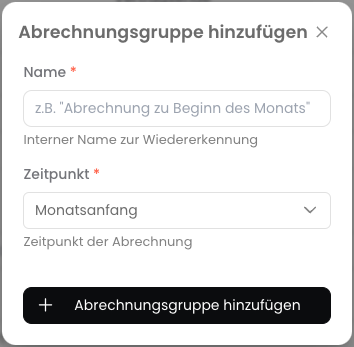 Now click "Add Billing Group" to create the billing group.
## Add Subscription to Billing Group
When [creating a subscription](/en/guide/subscriptions/create), you can select a billing group under the advanced billing details. All subscriptions in the same billing group are billed together.
Billing groups are customer-specific. You can create separate billing groups for each customer.
Now click "Add Billing Group" to create the billing group.
## Add Subscription to Billing Group
When [creating a subscription](/en/guide/subscriptions/create), you can select a billing group under the advanced billing details. All subscriptions in the same billing group are billed together.
Billing groups are customer-specific. You can create separate billing groups for each customer.