> ## Documentation Index
> Fetch the complete documentation index at: https://docs.fynn.eu/llms.txt
> Use this file to discover all available pages before exploring further.
# Create Subscription
> Create new subscriptions for your customers
In Fynn, subscriptions can be created via the web app. Various options and settings can be configured for the subscription.
Click on the "+" symbol in the upper right corner and select `Subscription`.
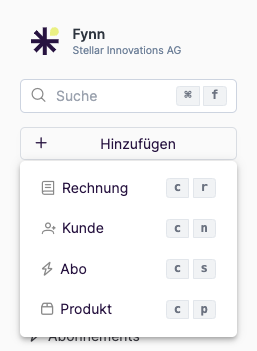 Configure the subscription with the desired settings and options. Various settings and options can be configured, such as:
* **Customer**: Select the customer to whom the subscription should be assigned.
* **Products**: Select the products to be included in the subscription.
* **Billing Date**: Select the billing date when the subscription should be billed.
* **Term**: Select the term of the subscription.
Click on `Add Product` to select the desired products to be included in the subscription.
Select the desired products from the list and click `Add` to add the products to the subscription.
Configure the subscription with the desired settings and options. Various settings and options can be configured, such as:
* **Customer**: Select the customer to whom the subscription should be assigned.
* **Products**: Select the products to be included in the subscription.
* **Billing Date**: Select the billing date when the subscription should be billed.
* **Term**: Select the term of the subscription.
Click on `Add Product` to select the desired products to be included in the subscription.
Select the desired products from the list and click `Add` to add the products to the subscription.
 If a product contains multiple prices, you can select the desired prices to be included in the subscription here.
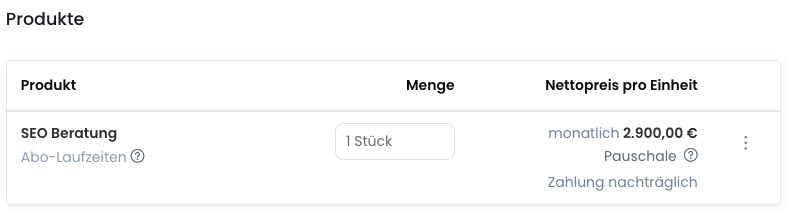
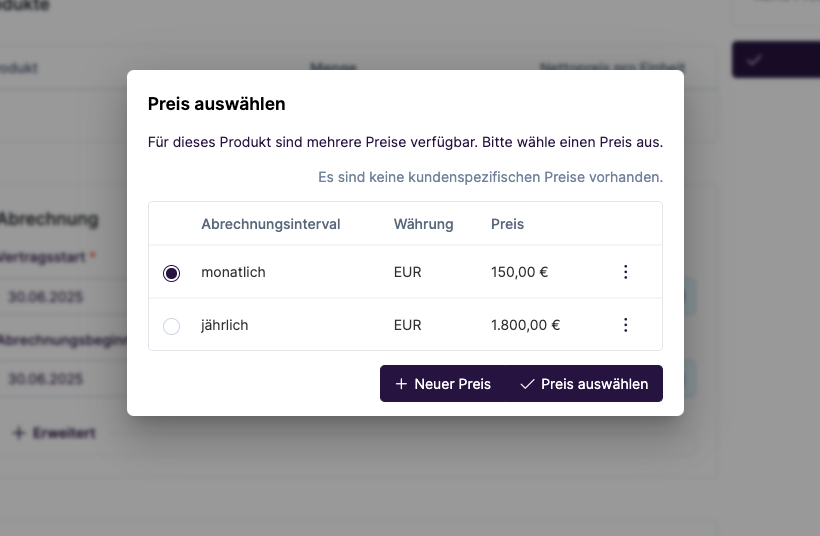 The products will then be added to the subscription and you can set the quantities and other settings for the products.
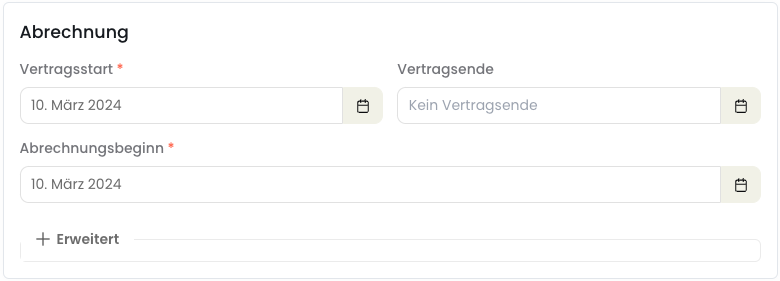
 Adjust the billing details:
* **Contract Start**: The contract start is relevant for calculating cancellation periods and the earliest possible cancellation dates, in connection with the subscription terms.
* **Billing Start**: The billing start is the date when the subscription will be billed. By default, this corresponds to the contract start. However, if the subscription is being migrated from a legacy system, for example, this should be set to the date when the subscription should be billed next. The billing interval is determined from this date.
* **Contract End**: If it is already known at the beginning of the subscription when it should end, the contract end can be specified here. Otherwise, a subscription can be manually cancelled in the future.
Adjust the billing details:
* **Contract Start**: The contract start is relevant for calculating cancellation periods and the earliest possible cancellation dates, in connection with the subscription terms.
* **Billing Start**: The billing start is the date when the subscription will be billed. By default, this corresponds to the contract start. However, if the subscription is being migrated from a legacy system, for example, this should be set to the date when the subscription should be billed next. The billing interval is determined from this date.
* **Contract End**: If it is already known at the beginning of the subscription when it should end, the contract end can be specified here. Otherwise, a subscription can be manually cancelled in the future.
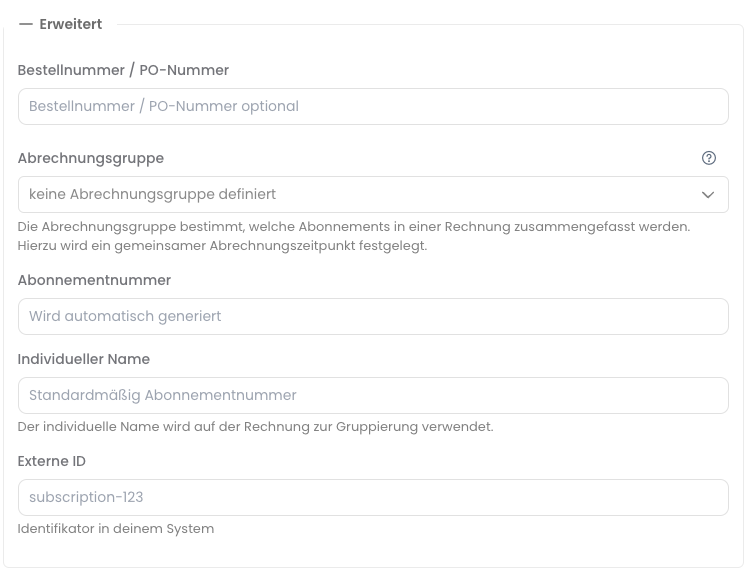
 Adjust the advanced billing details:
* **Order Number / PO Number**: Enter the order number or PO number to be assigned to the subscription. The PO number is always displayed on the invoice.
* **Billing Group**: With the billing group, you can combine multiple subscriptions into a group. This way, subscriptions are billed together and summarized on one invoice. More details can be found at [Billing Groups](/en/guide/subscriptions/billing-groups).
* **Subscription Number**: By default, the subscription number is automatically generated. However, you can enter a custom subscription number here.
* **Custom Name**: Enter a custom name for the subscription here. This name is displayed on the invoice and in the subscription overview. By default, the subscription number is used as the name.
* **External ID**: Enter an external ID to be assigned to the subscription. This ID is used in the API and webhook to identify the subscription.
Adjust the advanced billing details:
* **Order Number / PO Number**: Enter the order number or PO number to be assigned to the subscription. The PO number is always displayed on the invoice.
* **Billing Group**: With the billing group, you can combine multiple subscriptions into a group. This way, subscriptions are billed together and summarized on one invoice. More details can be found at [Billing Groups](/en/guide/subscriptions/billing-groups).
* **Subscription Number**: By default, the subscription number is automatically generated. However, you can enter a custom subscription number here.
* **Custom Name**: Enter a custom name for the subscription here. This name is displayed on the invoice and in the subscription overview. By default, the subscription number is used as the name.
* **External ID**: Enter an external ID to be assigned to the subscription. This ID is used in the API and webhook to identify the subscription.
 Adjust the terms of the subscription. You can add any number of terms and adjust the cancellation periods.
* **Contract Term**: Select the contract term of the subscription. By default, the contract term is set to 1 year.
* **Cancellation Period**: Select the cancellation period of the subscription. By default, the cancellation period is set to 14 days.
These periods can be individually adjusted for each subscription and are relevant for calculating the earliest possible cancellation date.
Adjust the terms of the subscription. You can add any number of terms and adjust the cancellation periods.
* **Contract Term**: Select the contract term of the subscription. By default, the contract term is set to 1 year.
* **Cancellation Period**: Select the cancellation period of the subscription. By default, the cancellation period is set to 14 days.
These periods can be individually adjusted for each subscription and are relevant for calculating the earliest possible cancellation date.
 Review the subscription and click `Start Subscription` to create the subscription. The subscription will then be created and billed.
Alternatively, you can:
* save the subscription as a draft and create it at a later time
* activate a trial period
* create an offer for the subscription
Use the [Create Subscription](/api-reference/subscription/create-subscription) endpoint for this.
```bash theme={null}
POST /subscriptions
```
## Adjust Billing Start
The billing start is the date when the subscription is first billed. By default, the billing start corresponds to the contract start. However, if the subscription is being migrated from a legacy system, for example, this should be set to the date when the subscription should be billed next. The billing interval begins from this date.
If the billing start is set in the past, the subscription will be billed retroactively.
Billing for all past billing cycles occurs immediately and within one invoice. After that, the subscription will be billed at the next billing date.
Review the subscription and click `Start Subscription` to create the subscription. The subscription will then be created and billed.
Alternatively, you can:
* save the subscription as a draft and create it at a later time
* activate a trial period
* create an offer for the subscription
Use the [Create Subscription](/api-reference/subscription/create-subscription) endpoint for this.
```bash theme={null}
POST /subscriptions
```
## Adjust Billing Start
The billing start is the date when the subscription is first billed. By default, the billing start corresponds to the contract start. However, if the subscription is being migrated from a legacy system, for example, this should be set to the date when the subscription should be billed next. The billing interval begins from this date.
If the billing start is set in the past, the subscription will be billed retroactively.
Billing for all past billing cycles occurs immediately and within one invoice. After that, the subscription will be billed at the next billing date.