> ## Documentation Index
> Fetch the complete documentation index at: https://docs.fynn.eu/llms.txt
> Use this file to discover all available pages before exploring further.
# Currencies
> Manage currencies and convert automatically
In Fynn, you can easily set up different currencies for your billing.
By default, the currency is set to Euro.
Automatische Währungsumrechnung
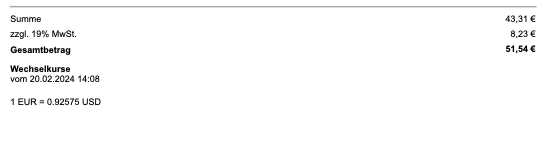
Es können mehrere Währungen in einer Rechnung verwendet werden. Die Umrechnung erfolgt automatisch auf Basis des aktuellen EZB-Wechselkurses.
Weitere Details findest unter [Multi-Währungen](/guide/tenant/currencies#multi-waehrungen).
## Add Currency
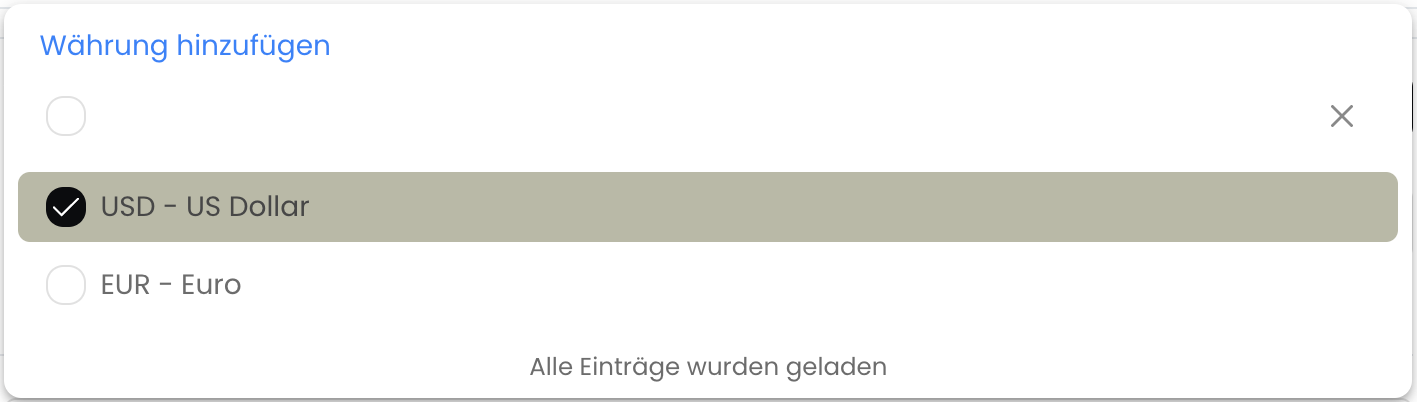
To add a new currency, follow these steps:
Go to [Settings > General](https://app.fynn.eu/settings/)
 ## Select Default Currency
The default currency is preselected in the interface, making work easier. To change the default currency, follow these steps:
Go to [Settings > General](https://app.fynn.eu/settings/)
## Select Default Currency
The default currency is preselected in the interface, making work easier. To change the default currency, follow these steps:
Go to [Settings > General](https://app.fynn.eu/settings/)
 ## Allowed Currencies
Allowed currencies are the currencies that can be used in Fynn for billing. To remove a currency, simply remove it from the list of allowed currencies.
Existing documents and invoices are not automatically converted when the currency is removed. However, the currency will no longer be offered for new selection in the interface.
## Allowed Currencies
Allowed currencies are the currencies that can be used in Fynn for billing. To remove a currency, simply remove it from the list of allowed currencies.
Existing documents and invoices are not automatically converted when the currency is removed. However, the currency will no longer be offered for new selection in the interface.
 ## Multi-Currency
Fynn supports the use of multiple currencies in an invoice. The conversion is done automatically based on the current ECB exchange rate.
The target currency corresponds to the currency selected when creating the invoice. If the invoice was created through subscription billing, the customer's currency was used.
The corresponding exchange rates are retrieved in real-time from the European Central Bank (ECB) and displayed in a table on the invoice.
## Multi-Currency
Fynn supports the use of multiple currencies in an invoice. The conversion is done automatically based on the current ECB exchange rate.
The target currency corresponds to the currency selected when creating the invoice. If the invoice was created through subscription billing, the customer's currency was used.
The corresponding exchange rates are retrieved in real-time from the European Central Bank (ECB) and displayed in a table on the invoice.