> ## Documentation Index
> Fetch the complete documentation index at: https://docs.fynn.eu/llms.txt
> Use this file to discover all available pages before exploring further.
# Number Ranges
> Number Ranges
By default, number ranges are already set up. However, if you need custom number ranges, you can configure them accordingly.
A separate number range can be set up for each document type (e.g., invoice, quote, order, etc.) and documents. The following types are available:
* Customers
* Subscriptions
* Invoices
* Credit Notes
* Dunning Letters / Payment Reminders
* Payments
* Cancellations
* DATEV Debtor Numbers
* Mandate Reference (SEPA Direct Debit)
## Setting Up Number Ranges
### Placeholders
To customize your numbers individually, various placeholders are available:
* `{number}`: A sequential number that is automatically generated.
* `{day}`: The day of the month (e.g., 10).
* `{month}`: The month (e.g., 09).
* `{year}`: The year (e.g., 22).
* `{yearLong}`: The full year (e.g., 2022).
* `{customerNumber}`: The customer number.
### Number Assignment
Fynn offers two different methods for number assignment:
* Sequential Number: Your number is based on a sequential sequence.
* Random String: Your number is generated with random numbers and letters.
With these options, you can ensure that your document numbers exactly meet your requirements.
### Number Formatting
In the "Format" field, you can set the format for the numbers. For example, for invoices, you could use the format `RE-{number}`.
## Customize Number Ranges
Go to [Settings > Number Ranges](https://app.fynn.eu/settings/number-ranges)
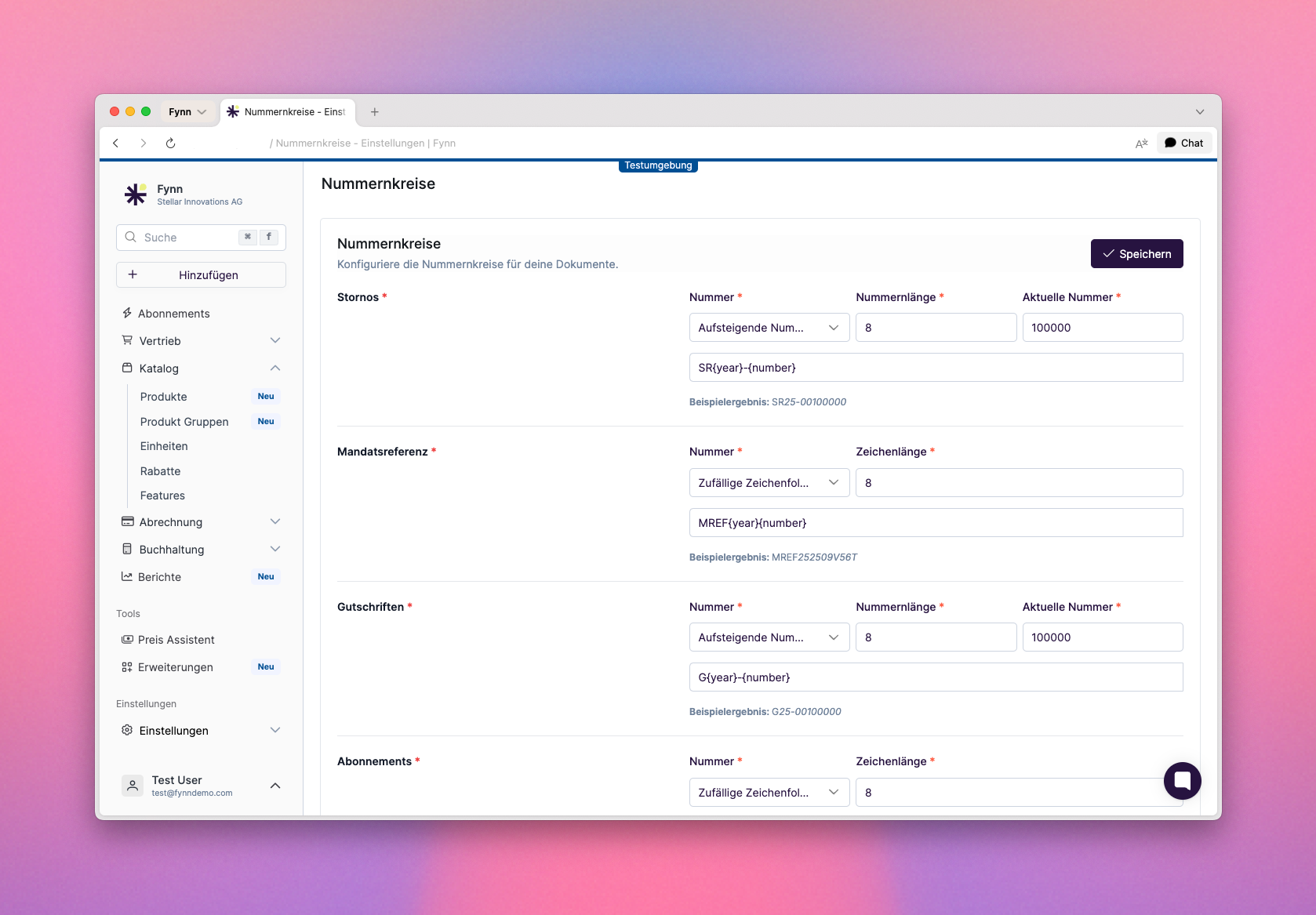 Once assigned, number ranges will not be reassigned, regardless of whether the "Current Number" is reset.