> ## Documentation Index
> Fetch the complete documentation index at: https://docs.fynn.eu/llms.txt
> Use this file to discover all available pages before exploring further.
# Customize Web Interface
> Customize the web interface to optimize work processes.
## Web App Default Values
To make working with the web app easier, a default value can be set for some selection fields.
This facilitates the work process and reduces the number of manual entries.
To set default values, follow these steps:
Go to [Settings > General](https://app.fynn.eu/settings)
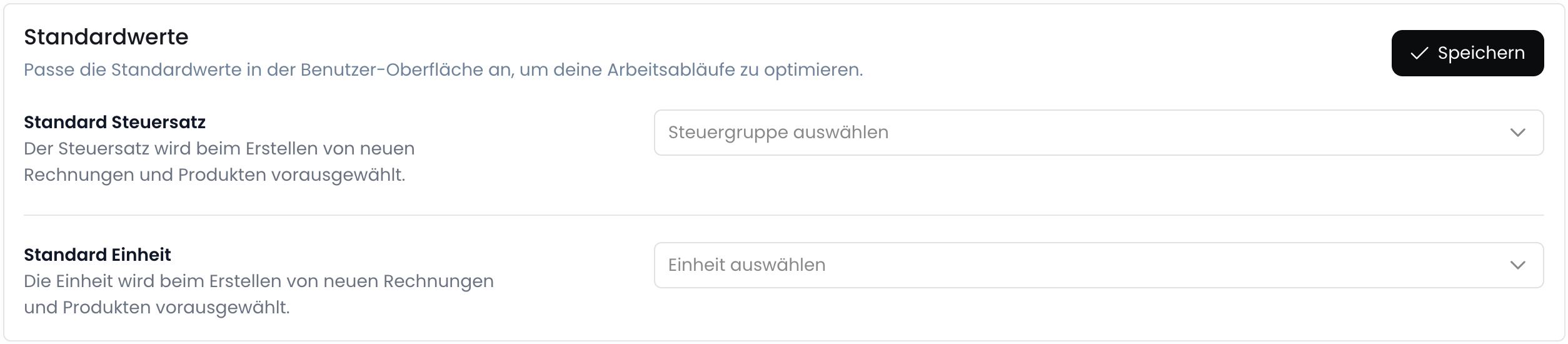 The default values will then be preselected in the corresponding selection fields.
## Read-Only Customers
In the web interface, customers can be set to read-only by default.
This means that no changes can be made to customer data and no customers can be created.
This is useful, for example, if you want to prevent employees from changing customer master data that is synchronized via an interface with the API.
Please note that this setting only applies to users of the web interface. For API keys, changes to customers can still be made.
To set a customer to read-only, follow these steps:
Go to [Settings > General](https://app.fynn.eu/settings)
The default values will then be preselected in the corresponding selection fields.
## Read-Only Customers
In the web interface, customers can be set to read-only by default.
This means that no changes can be made to customer data and no customers can be created.
This is useful, for example, if you want to prevent employees from changing customer master data that is synchronized via an interface with the API.
Please note that this setting only applies to users of the web interface. For API keys, changes to customers can still be made.
To set a customer to read-only, follow these steps:
Go to [Settings > General](https://app.fynn.eu/settings)
