> ## Documentation Index
> Fetch the complete documentation index at: https://docs.fynn.eu/llms.txt
> Use this file to discover all available pages before exploring further.
# Bank Transfer
> We offer you a variety of integrations with 3rd-party tools and services to extend the functionality of the Fynn platform.
The Bank Transfer payment method allows customers to manually pay their invoices by bank transfer. Here you can learn how to use the Bank Transfer payment method in Fynn:
## Setup
The Bank Transfer payment method is available by default in Fynn. To accept bank transfers, you only need to add your bank details to your Fynn account.
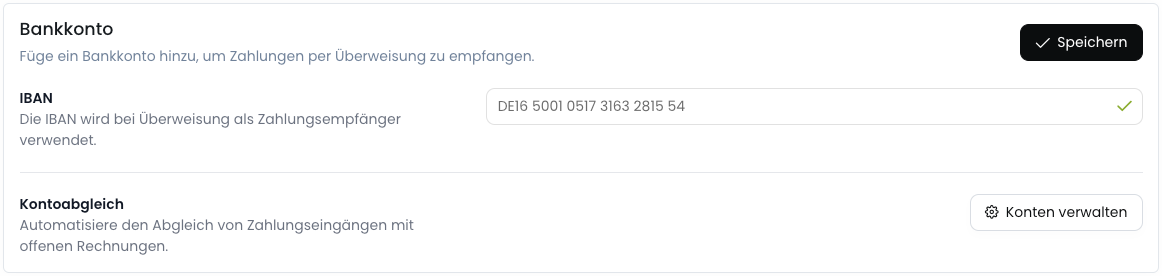
Go to [Settings > Payment Methods](https://app.fynn.eu/settings/payment-methods) and scroll down to "Bank Account".
Add the IBAN of the bank account to which your customers should make transfers.
This bank account will be displayed on your customers' invoices.
 The IBAN will be automatically validated.
Click "Save" to apply the changes.
If you want to add multiple bank accounts and use them on different invoices/subscriptions,
please contact us and we will be happy to help: [Contact us](mailto:hi@fynn.eu)
## Update Payment Status
After you have added your bank details, you can manually manage the payment status of an invoice.
Alternatively, Fynn offers a bank account sync that retrieves account transactions from your bank account twice daily.
Based on various parameters, it is determined whether an account transaction can be assigned to an invoice.
If no automatic assignment occurs, these account transactions must be linked manually.
### Benefits of Bank Account Sync
* **Automatic assignment**: Bank Account Sync enables automatic assignment of account transactions to open invoices, reducing manual effort and speeding up payment processing.
* **Error reduction**: Automatic assignment of account transactions reduces the risk of errors in manual allocation and increases the accuracy of payment tracking.
* **Time savings**: Bank Account Sync saves time by eliminating the need to manually review account transactions and reducing the manual assignment of account transactions to open invoices.
### Activate Bank Account Sync
To connect your bank with Fynn and activate Bank Account Sync, follow these steps:
Go to [Settings > Payment Methods](https://app.fynn.eu/settings/payment-methods) and scroll down to "Bank Account".
Click "Manage Accounts" under "Account Reconciliation".
The IBAN will be automatically validated.
Click "Save" to apply the changes.
If you want to add multiple bank accounts and use them on different invoices/subscriptions,
please contact us and we will be happy to help: [Contact us](mailto:hi@fynn.eu)
## Update Payment Status
After you have added your bank details, you can manually manage the payment status of an invoice.
Alternatively, Fynn offers a bank account sync that retrieves account transactions from your bank account twice daily.
Based on various parameters, it is determined whether an account transaction can be assigned to an invoice.
If no automatic assignment occurs, these account transactions must be linked manually.
### Benefits of Bank Account Sync
* **Automatic assignment**: Bank Account Sync enables automatic assignment of account transactions to open invoices, reducing manual effort and speeding up payment processing.
* **Error reduction**: Automatic assignment of account transactions reduces the risk of errors in manual allocation and increases the accuracy of payment tracking.
* **Time savings**: Bank Account Sync saves time by eliminating the need to manually review account transactions and reducing the manual assignment of account transactions to open invoices.
### Activate Bank Account Sync
To connect your bank with Fynn and activate Bank Account Sync, follow these steps:
Go to [Settings > Payment Methods](https://app.fynn.eu/settings/payment-methods) and scroll down to "Bank Account".
Click "Manage Accounts" under "Account Reconciliation".
 Now click "Connect Bank Account" in the dialog. A window will open to select your bank.
Here you can select your bank and will then be redirected to our partner GoCardless.
Your login credentials are never shared with us and are securely encrypted at GoCardless.
We only get access to your account transactions to match them with open invoices.
If you have multiple bank accounts under one login, you can select them after authorization at GoCardless.
Now click "Connect Bank Account" in the dialog. A window will open to select your bank.
Here you can select your bank and will then be redirected to our partner GoCardless.
Your login credentials are never shared with us and are securely encrypted at GoCardless.
We only get access to your account transactions to match them with open invoices.
If you have multiple bank accounts under one login, you can select them after authorization at GoCardless.
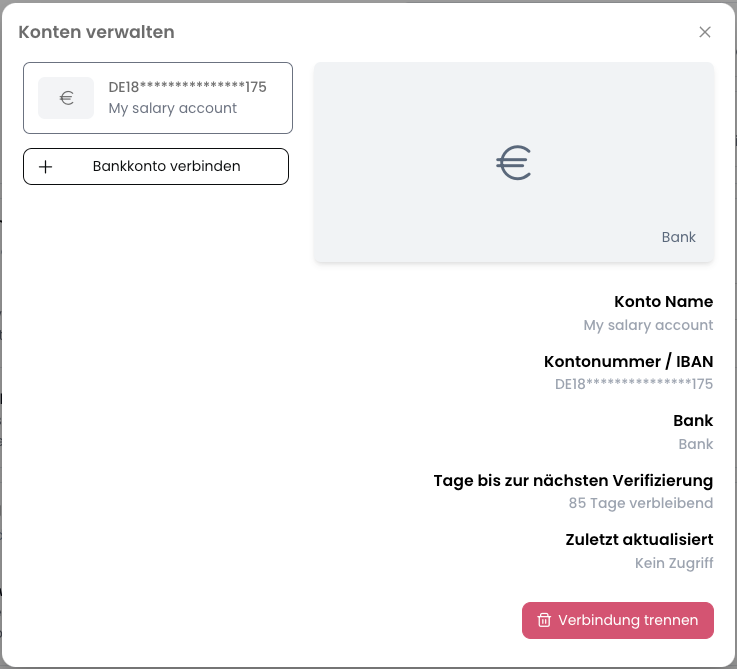 Your bank account has now been successfully added. Account transactions will now be retrieved from your bank account twice daily (8:00 AM, 4:00 PM)
and matched with open invoices.
By using the Bank Transfer payment method and Bank Account Sync in Fynn, you can optimize payment processing and make your accounting more efficient.
During initial setup, the last 90 days of account transactions are retrieved and matched with open invoices.
## Manually Assign Account Transactions
In some cases, an account transaction may not be automatically assigned to an invoice,
for example, because incorrect information was provided in the transfer, or the account transaction was not intended to pay an invoice.
Go to [Payments > Account Transactions](https://app.fynn.eu/finance/bank-transactions).
Here you can see all account transactions retrieved from your bank account.
Your bank account has now been successfully added. Account transactions will now be retrieved from your bank account twice daily (8:00 AM, 4:00 PM)
and matched with open invoices.
By using the Bank Transfer payment method and Bank Account Sync in Fynn, you can optimize payment processing and make your accounting more efficient.
During initial setup, the last 90 days of account transactions are retrieved and matched with open invoices.
## Manually Assign Account Transactions
In some cases, an account transaction may not be automatically assigned to an invoice,
for example, because incorrect information was provided in the transfer, or the account transaction was not intended to pay an invoice.
Go to [Payments > Account Transactions](https://app.fynn.eu/finance/bank-transactions).
Here you can see all account transactions retrieved from your bank account.
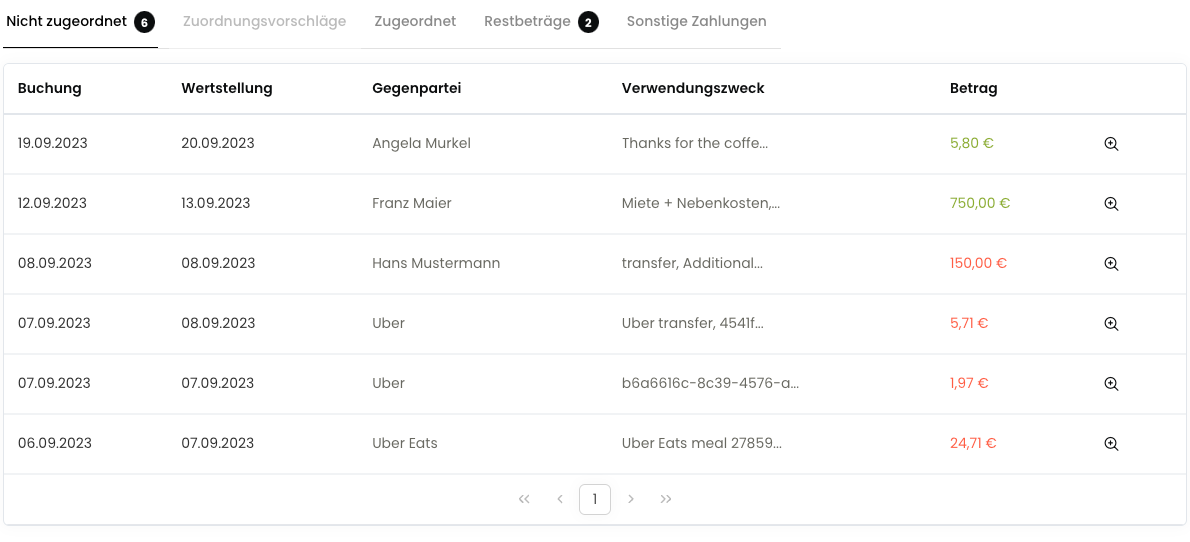 Open the account transaction you want to manually assign by clicking the "magnifying glass" icon.
Now select the invoices that should be paid with this account transaction.
Open the account transaction you want to manually assign by clicking the "magnifying glass" icon.
Now select the invoices that should be paid with this account transaction.
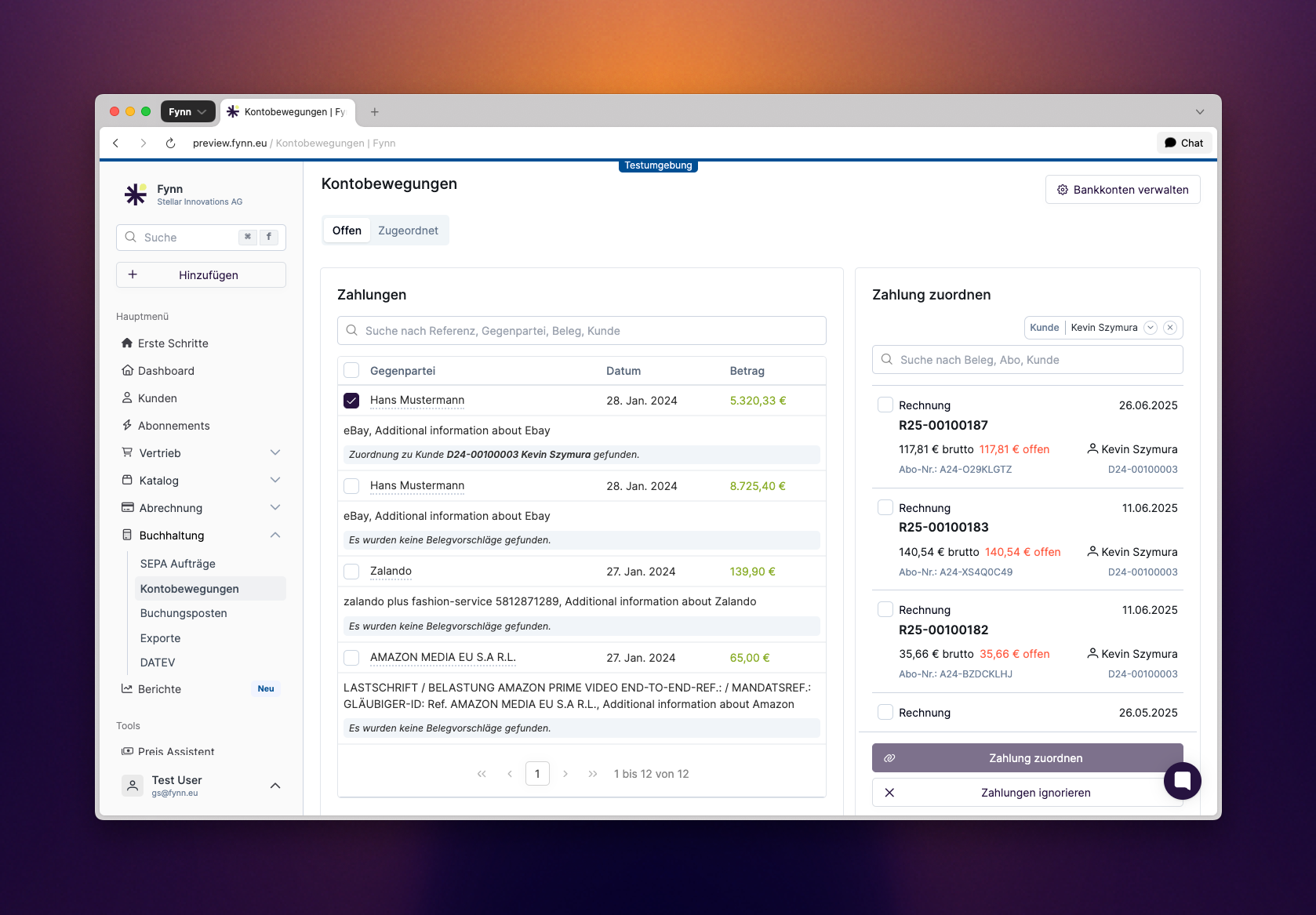 Click "Assign Documents" to manually assign the account transaction.
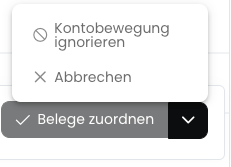
If the account transaction was not intended to pay an invoice, you can also ignore it.
Click the "arrow" icon next to "Assign Documents" and select "Ignore Account Transaction".
Click "Assign Documents" to manually assign the account transaction.
If the account transaction was not intended to pay an invoice, you can also ignore it.
Click the "arrow" icon next to "Assign Documents" and select "Ignore Account Transaction".
 The account transaction has now been successfully assigned or ignored and the invoices have been paid.