> ## Documentation Index
> Fetch the complete documentation index at: https://docs.fynn.eu/llms.txt
> Use this file to discover all available pages before exploring further.
# PayPal
> We offer you a variety of integrations with 3rd-party tools and services to extend the functionality of the Fynn platform.
 The PayPal payment method allows customers to easily and securely pay their invoices through their PayPal account. Here you can learn more about the benefits of PayPal and how to connect it with Fynn:
## Benefits of PayPal
* **Fast and secure payments**: PayPal offers a fast and secure payment method where customers can easily and conveniently pay their invoices through their PayPal account.
* **Global acceptance**: PayPal is accepted worldwide and offers customers a trusted and well-known payment method, regardless of their location or currency.
* **Buyer protection**: PayPal offers buyer protection, which gives customers additional security in case of problems with the order or payment.
## Connect PayPal
You don't need an account to connect PayPal. You can create one directly during the setup process.
To connect PayPal with Fynn, follow these steps:
Go to [Settings > Payment Methods](https://app.fynn.eu/settings/payment-methods).
Click the "Connect" button next to the PayPal logo. You will now be redirected to the PayPal website, where you can log in with your PayPal account or create a new account.
The PayPal payment method allows customers to easily and securely pay their invoices through their PayPal account. Here you can learn more about the benefits of PayPal and how to connect it with Fynn:
## Benefits of PayPal
* **Fast and secure payments**: PayPal offers a fast and secure payment method where customers can easily and conveniently pay their invoices through their PayPal account.
* **Global acceptance**: PayPal is accepted worldwide and offers customers a trusted and well-known payment method, regardless of their location or currency.
* **Buyer protection**: PayPal offers buyer protection, which gives customers additional security in case of problems with the order or payment.
## Connect PayPal
You don't need an account to connect PayPal. You can create one directly during the setup process.
To connect PayPal with Fynn, follow these steps:
Go to [Settings > Payment Methods](https://app.fynn.eu/settings/payment-methods).
Click the "Connect" button next to the PayPal logo. You will now be redirected to the PayPal website, where you can log in with your PayPal account or create a new account.
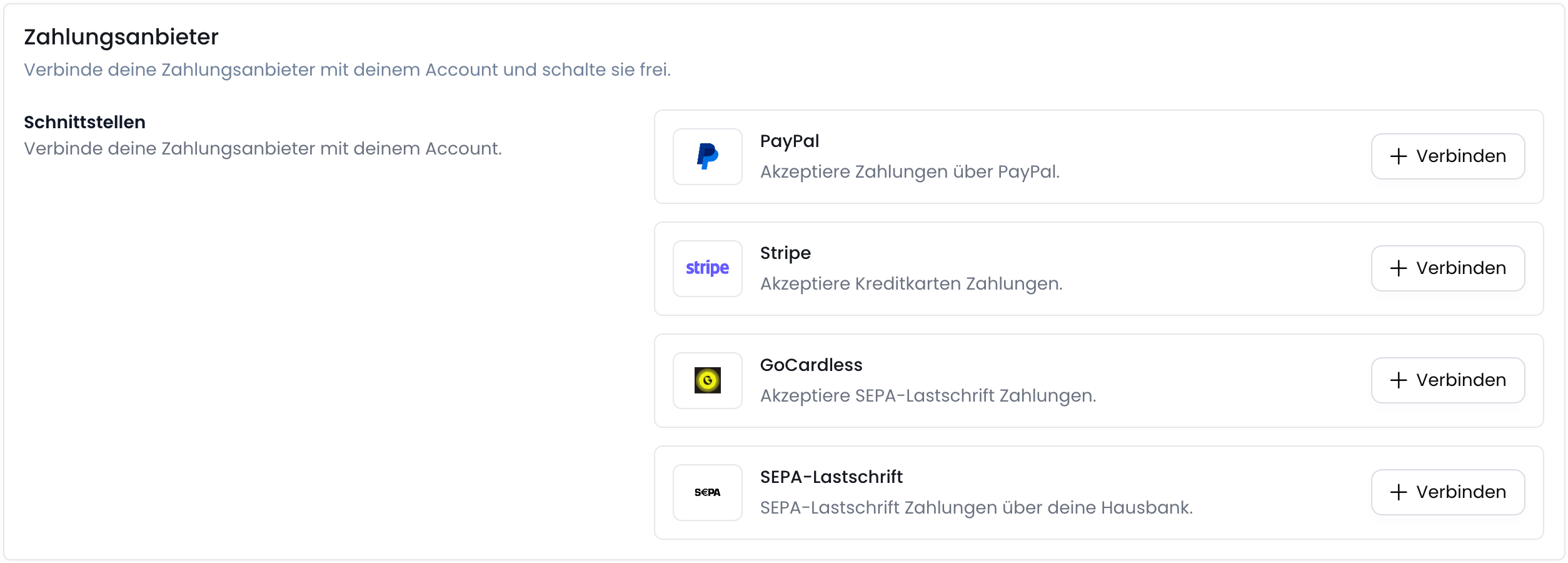 If you already have a PayPal account, you can log in with your credentials. Otherwise, you can create a new account.
After you have logged in to PayPal or created a new account, you will be redirected back to the Fynn platform.
Then your PayPal email address must be confirmed before you can accept payments via PayPal.
After you have confirmed your PayPal email address, PayPal is successfully connected and you can accept payments via PayPal.
After PayPal has been successfully connected, you can activate the PayPal payment method by clicking the toggle next to "PayPal".
For more details, see [Enable payment methods](/guide/tenant/payment-methods#zahlungsmethoden-freigeben).
If you already have a PayPal account, you can log in with your credentials. Otherwise, you can create a new account.
After you have logged in to PayPal or created a new account, you will be redirected back to the Fynn platform.
Then your PayPal email address must be confirmed before you can accept payments via PayPal.
After you have confirmed your PayPal email address, PayPal is successfully connected and you can accept payments via PayPal.
After PayPal has been successfully connected, you can activate the PayPal payment method by clicking the toggle next to "PayPal".
For more details, see [Enable payment methods](/guide/tenant/payment-methods#zahlungsmethoden-freigeben).
