> ## Documentation Index
> Fetch the complete documentation index at: https://docs.fynn.eu/llms.txt
> Use this file to discover all available pages before exploring further.
# SEPA Direct Debit
> We offer you a variety of integrations with 3rd-party tools and services to extend the functionality of the Fynn platform.
The SEPA Direct Debit payment method via your bank allows customers to have their invoices automatically debited from their bank account. Here you can learn more about the benefits of SEPA Direct Debit and how to connect it with Fynn:
## Benefits of SEPA Direct Debit via Your Bank
* **Automatic payments**: SEPA Direct Debit enables automatic debiting of invoice amounts directly from the customer's bank account, providing a convenient and reliable payment method.
* **Reduced administrative effort**: By automating payments, the manual effort of processing invoices and tracking outstanding items is eliminated, increasing efficiency and minimizing errors.
* **Punctual payments**: SEPA Direct Debit ensures punctual payments, as invoice amounts are automatically debited from the customer's bank account on the due date.
* **Security and reliability**: SEPA Direct Debit offers a secure and reliable payment method, as payments are processed directly between bank accounts and the SEPA system meets strict security standards.
## Set up SEPA Direct Debit
You don't need an account to connect SEPA Direct Debit via your bank with Fynn.
To connect SEPA Direct Debit with Fynn, follow these steps:
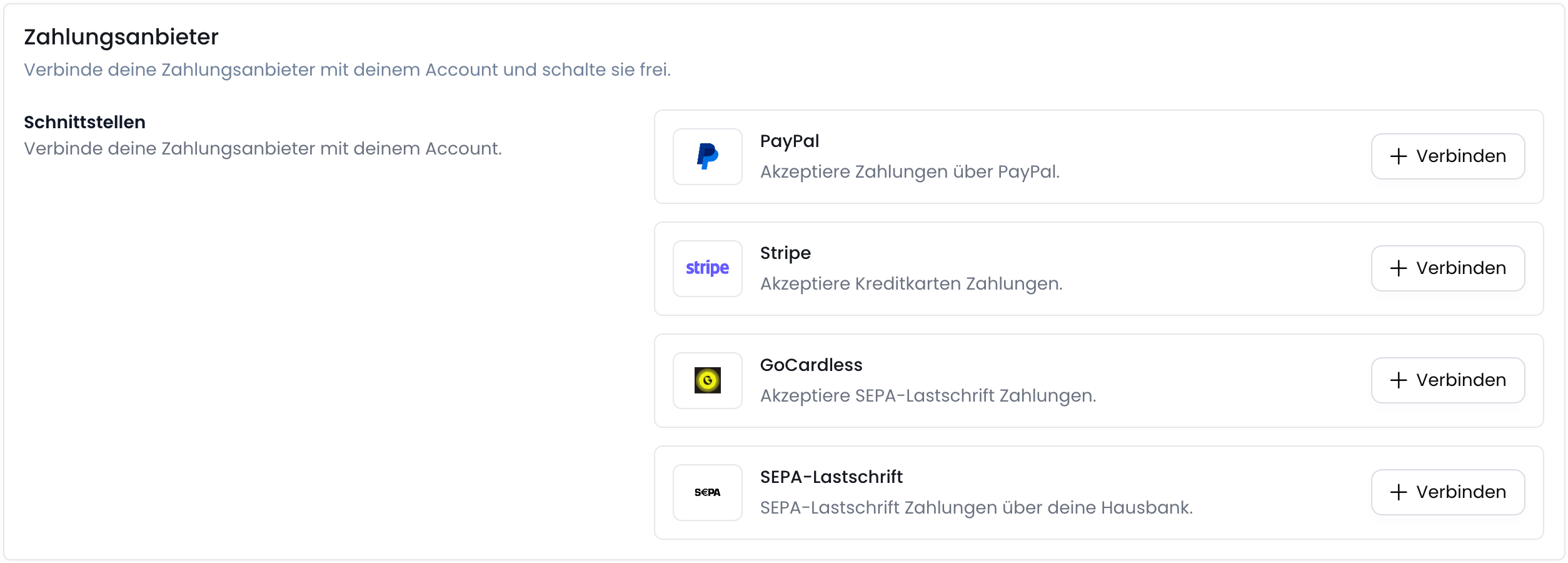
Go to [Settings > Payment Methods](https://app.fynn.eu/settings/payment-methods).
Click the "Connect" button next to the SEPA logo. A new window will open where you can configure SEPA Direct Debit via your bank with Fynn.
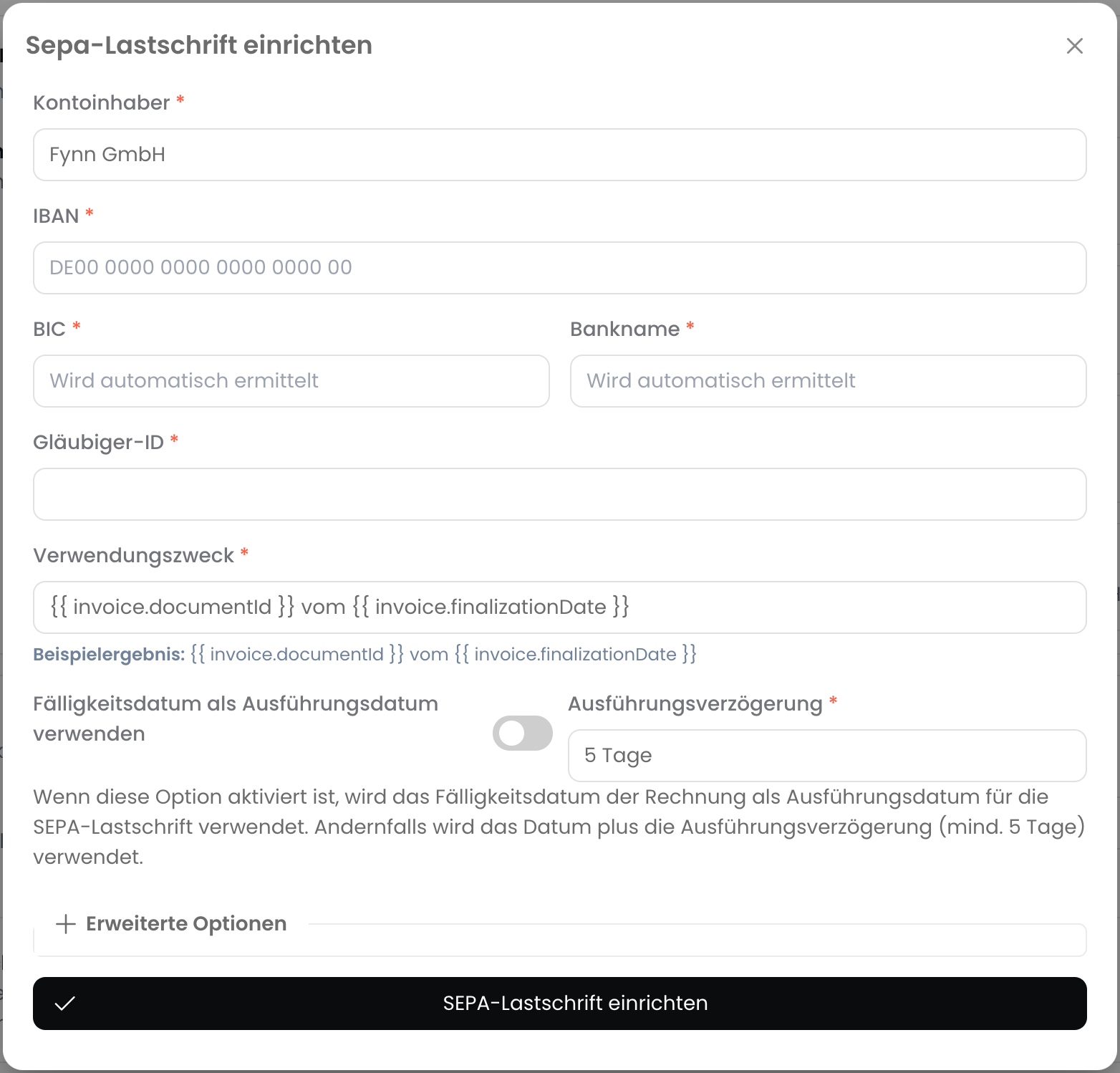
 Fill in the required fields to connect SEPA Direct Debit via your bank with Fynn. These include:
* **Creditor Identifier**: The Creditor Identifier is a unique identifier assigned by the Deutsche Bundesbank that enables the identification of the creditor in SEPA direct debit transactions.
* **Payment Reference**: The payment reference is an individual text that appears on the customer's bank statement and serves to identify the payment.
Fill in the required fields to connect SEPA Direct Debit via your bank with Fynn. These include:
* **Creditor Identifier**: The Creditor Identifier is a unique identifier assigned by the Deutsche Bundesbank that enables the identification of the creditor in SEPA direct debit transactions.
* **Payment Reference**: The payment reference is an individual text that appears on the customer's bank statement and serves to identify the payment.
 You can now use SEPA Direct Debit via your bank with Fynn to accept automatic payments from your customers.
After SEPA Direct Debit has been successfully connected, you can activate the SEPA Direct Debit payment method by clicking the toggle next to "SEPA Direct Debit".
For more details, see [Enable payment methods](/guide/tenant/payment-methods#zahlungsmethoden-freigeben).
You can now use SEPA Direct Debit via your bank with Fynn to accept automatic payments from your customers.
After SEPA Direct Debit has been successfully connected, you can activate the SEPA Direct Debit payment method by clicking the toggle next to "SEPA Direct Debit".
For more details, see [Enable payment methods](/guide/tenant/payment-methods#zahlungsmethoden-freigeben).
 ## Upload SEPA Direct Debits to Your Bank
To collect SEPA direct debits, you need to upload the SEPA direct debits to your bank. Follow these steps:
An automated integration for transmitting SEPA direct debits to your bank via the EBICS interface is planned.
Click on "SEPA Orders" on the left side of the web app and click on "Generate File".
## Upload SEPA Direct Debits to Your Bank
To collect SEPA direct debits, you need to upload the SEPA direct debits to your bank. Follow these steps:
An automated integration for transmitting SEPA direct debits to your bank via the EBICS interface is planned.
Click on "SEPA Orders" on the left side of the web app and click on "Generate File".
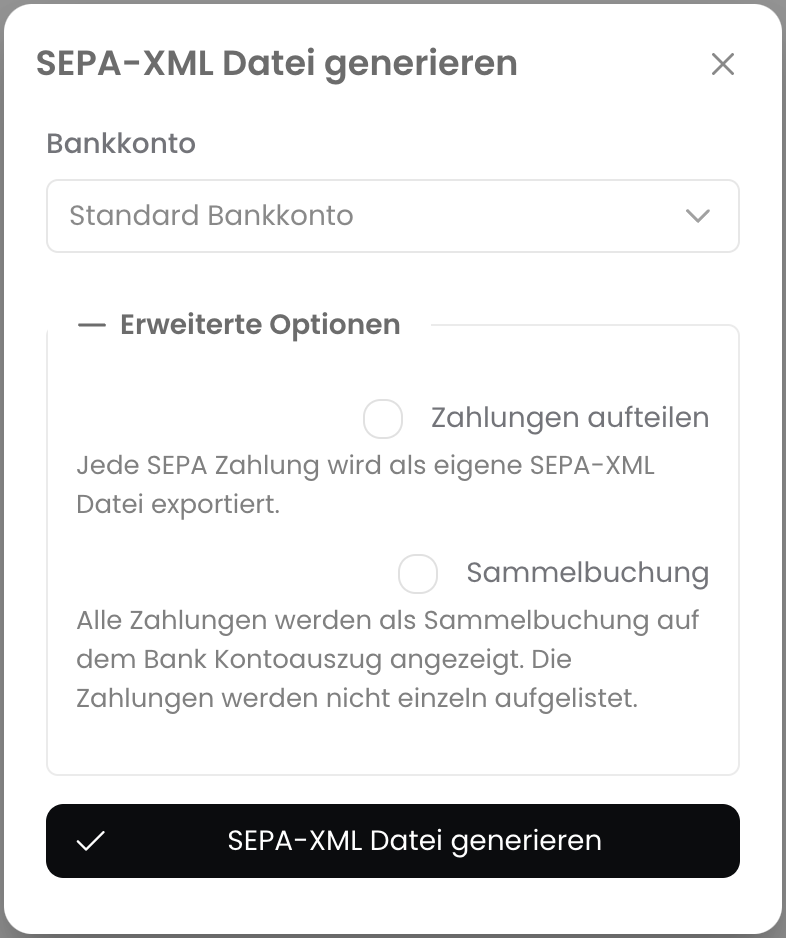
 A new window will open where you can configure the SEPA order file.
For some banks, it may be technically necessary for each payment to be in its own file. In this case, you can enable "Split Payment".
If you want only a single entry in your bank account, you can enable "Batch Booking".
A new window will open where you can configure the SEPA order file.
For some banks, it may be technically necessary for each payment to be in its own file. In this case, you can enable "Split Payment".
If you want only a single entry in your bank account, you can enable "Batch Booking".
 Click on "Generate SEPA Orders". A file will be generated that you can upload to your bank.
Now upload the generated SEPA file to your bank to collect the SEPA direct debits.
After you have uploaded the SEPA direct debits to your bank, you should mark the SEPA orders in Fynn as "Uploaded".
This triggers the SEPA direct debit pre-notification and informs your customers about the upcoming debit.
You have now successfully uploaded SEPA direct debits to your bank and marked the SEPA orders in Fynn as "Uploaded".
Click on "Generate SEPA Orders". A file will be generated that you can upload to your bank.
Now upload the generated SEPA file to your bank to collect the SEPA direct debits.
After you have uploaded the SEPA direct debits to your bank, you should mark the SEPA orders in Fynn as "Uploaded".
This triggers the SEPA direct debit pre-notification and informs your customers about the upcoming debit.
You have now successfully uploaded SEPA direct debits to your bank and marked the SEPA orders in Fynn as "Uploaded".