


Benefits of Stripe
- Easy and secure payments: Stripe Payments offers an easy and secure way for customers to pay invoices with credit card, making the payment process easier for both parties.
- Fast transaction processing: With Stripe Payments, payments are processed in real-time, enabling fast transaction processing and ensuring that invoices are paid immediately.
- Variety of payment options: Stripe supports a variety of credit cards, including Visa, Mastercard, American Express, and more, offering customers a wide range of payment options.
- Automatic billing and invoicing: By integrating Stripe Payments, businesses can set up automatic billing and easily track and manage payments, reducing administrative effort and minimizing errors.
Connect Stripe
You don’t need an account to connect Stripe. You can create one directly during the setup process.
1
Open the payment methods settings
Go to Settings > Payment Methods.
2
Click on Connect
Click the “Connect” button next to the Stripe logo. You will now be redirected to the Stripe website, where you can log in with your Stripe account or create a new account.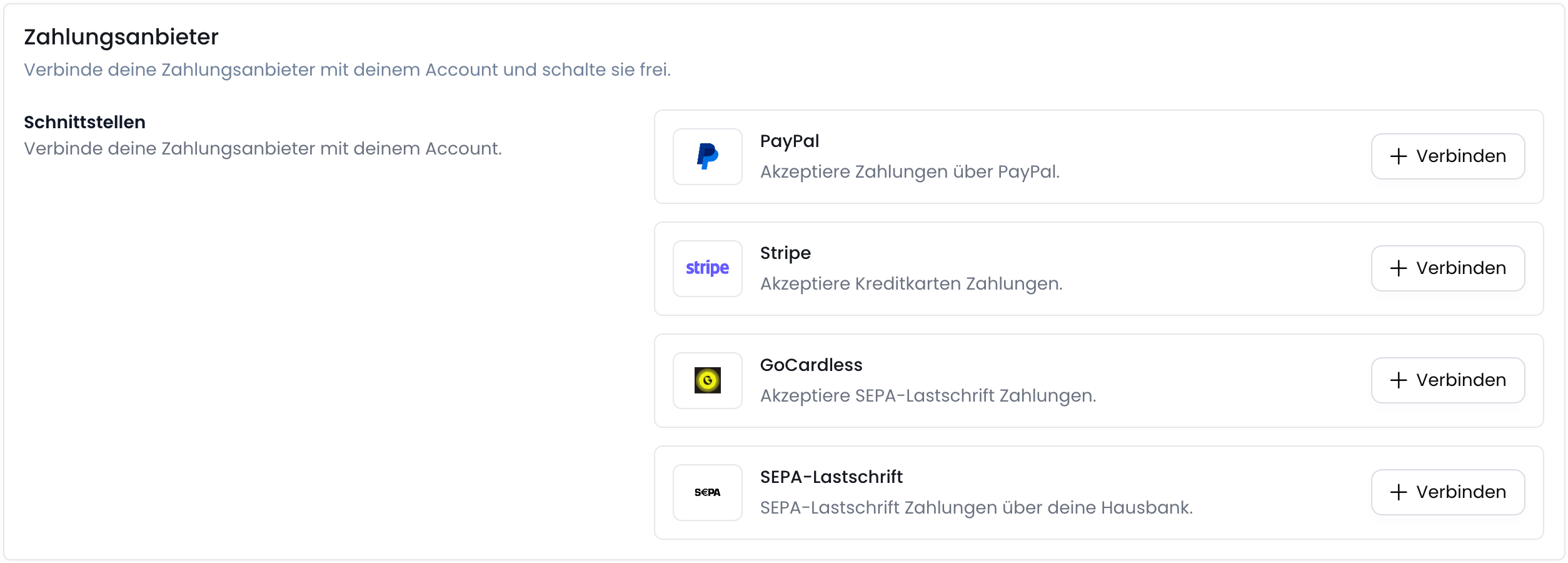
3
Create or log in to Stripe account
If you already have a Stripe account, you can log in with your credentials. Otherwise, you can create a new account by clicking “Create an account” and entering the required information.
4
Stripe is successfully connected
After you have logged in to Stripe or created a new account, you will be redirected back to the Fynn platform and receive a confirmation that Stripe has been successfully connected.
5
(optional) Activate credit card payment method
After Stripe has been successfully connected, you can activate the credit card payment method by clicking the toggle next to “Credit Card”.For more details, see Enable payment methods.
Start Stripe Migration
1
Open Stripe Migration
Click the “Settings” icon next to the Stripe logo and select “Start Migration”.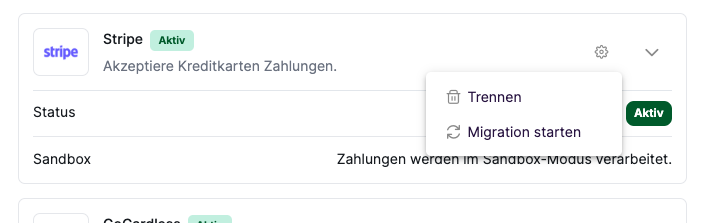
2
Start Stripe Migration
A migration wizard will open. You will now be guided through the migration process to migrate your existing payment methods and customers from your old payment provider to Stripe.Migration ProcessClick “Start Migration” to begin.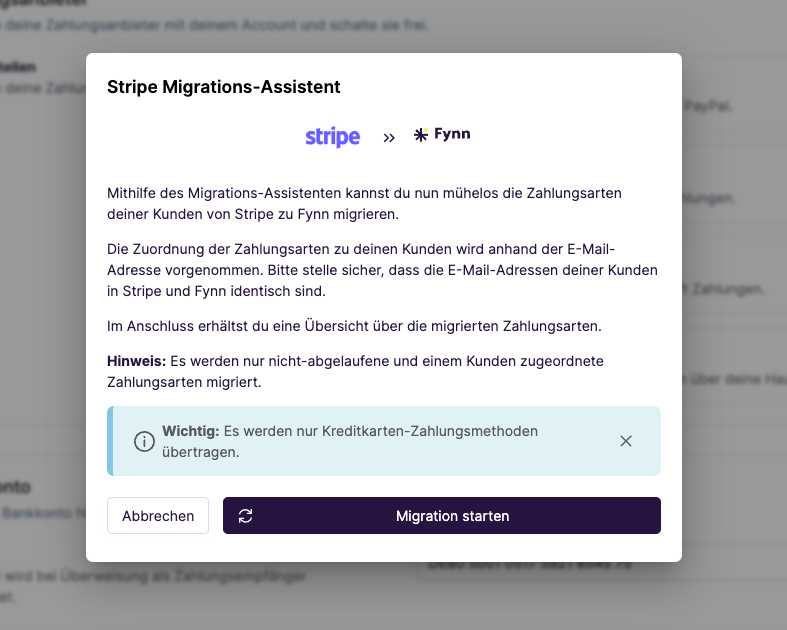
- For all customers created in Fynn, the corresponding customer in the connected Stripe account will be searched based on the email address stored in Fynn
- If a matching customer is found in Stripe, all payment methods will be retrieved. These will then be migrated to Fynn if they meet the following criteria:
- the payment method is a “Credit Card”
- the credit card has not expired
- the credit card is not already assigned to any customer in Fynn
If the payment method was successfully migrated, the customer will be notified about the addition of a new payment method.
If this is not desired, we recommend disabling the “Payment method added” notification in the settings.
3
Migration completed
After you have completed the migration process, you will receive a confirmation that the migration was successfully completed.Here you will get an overview of all payment methods and customers that were successfully migrated.
You will also receive an overview of which payment methods could not be migrated and why.
Customer Data Migration
No customers are migrated from the Stripe account to Fynn.
Product Migration
No products are migrated from the Stripe account to Fynn.
Subscription Migration
No subscriptions are migrated from the Stripe account to Fynn.
Subscriptions already created in Stripe can continue to run in parallel with subscriptions in Fynn. However, we recommend migrating the subscriptions to manage all data centrally.
To prevent duplicate billing during migration, when creating a subscription in Fynn, the value in the subscription creation form under “Billing” > “Billing Start” should be set to the date from which billing should occur in Fynn.