Premium Addon

This integration is available from the Pro Plan onwards. To use the integration, please contact hi@fynn.eu
Important: The following values must be set under Settings > Accounting before starting the DATEVconnect online export:
  • Debtor Posting Accounts
  • Posting per Invoice Line Item
  • Fiscal Year Start
  • SKR Chart of Accounts
These settings are relevant for the DATEV Posting Data Service. If incorrect values are entered here, the export will fail. For precise information, please contact your tax advisor.

Set up and Connect DATEVconnect online

To set up the DATEVconnect online integration in Fynn, you need the following information:
  • DATEV Consultant Number
  • DATEV Client Number
  • SKR Chart of Accounts
  • DATEVconnect online login credentials (username and password)
  • DATEV Posting Data Service must be booked in advance through DATEV
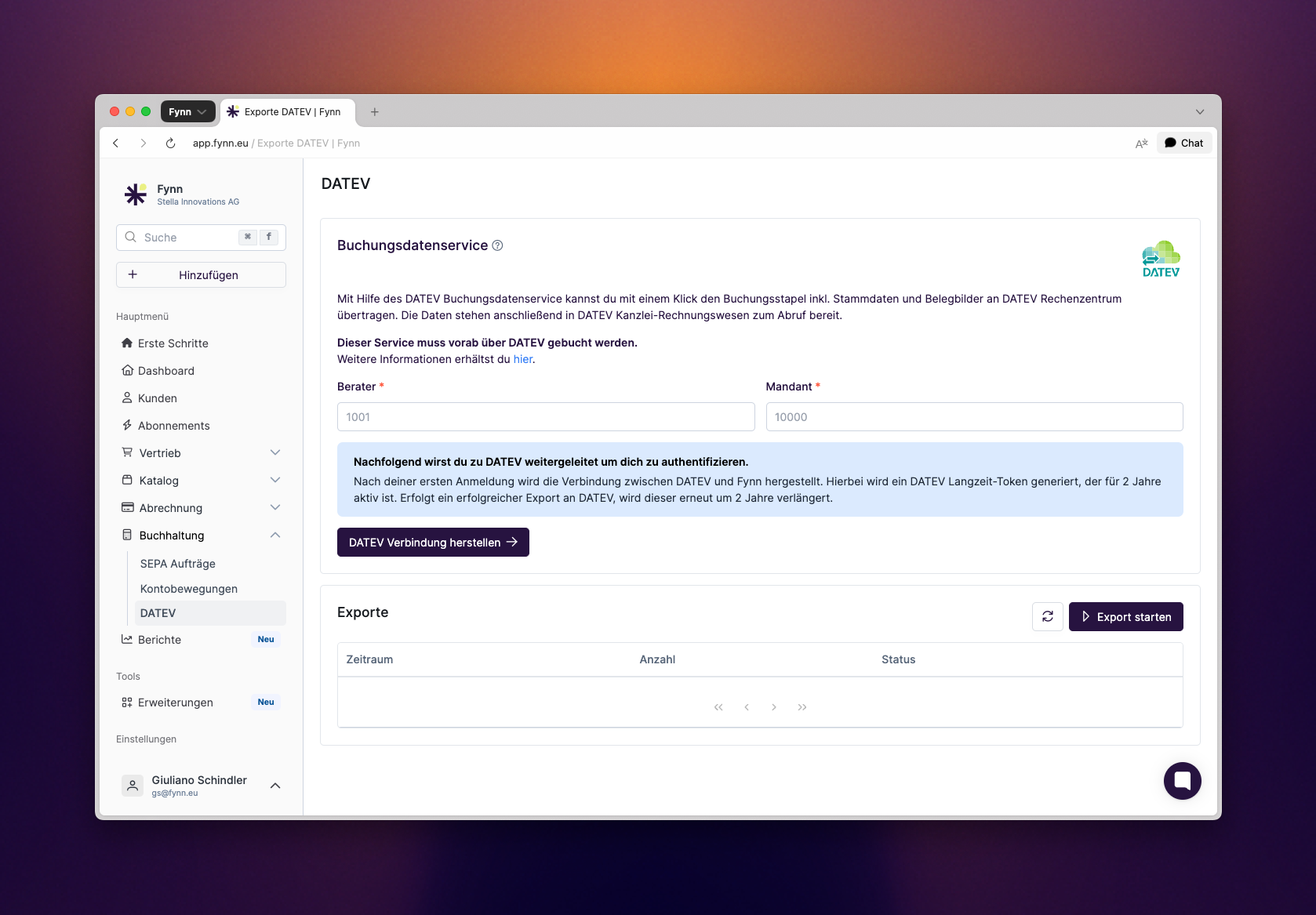
You can obtain the DATEV Consultant Number and Client Number from your tax advisor. The SKR Chart of Accounts is the standard chart of accounts you use in DATEV.
Set up DATEVconnect online
1

Enter DATEV Consultant Number and DATEV Client Number

Navigate in Fynn to the menu on the left side under Accounting > DATEV.
2

Click on Establish DATEV Connection

In the next step, you will be asked to enter your DATEV Unternehmen online login credentials. After completing the connection, you will be redirected back to Fynn.
3

Connection successfully established

You can now see whether the connection to DATEV was successfully established.
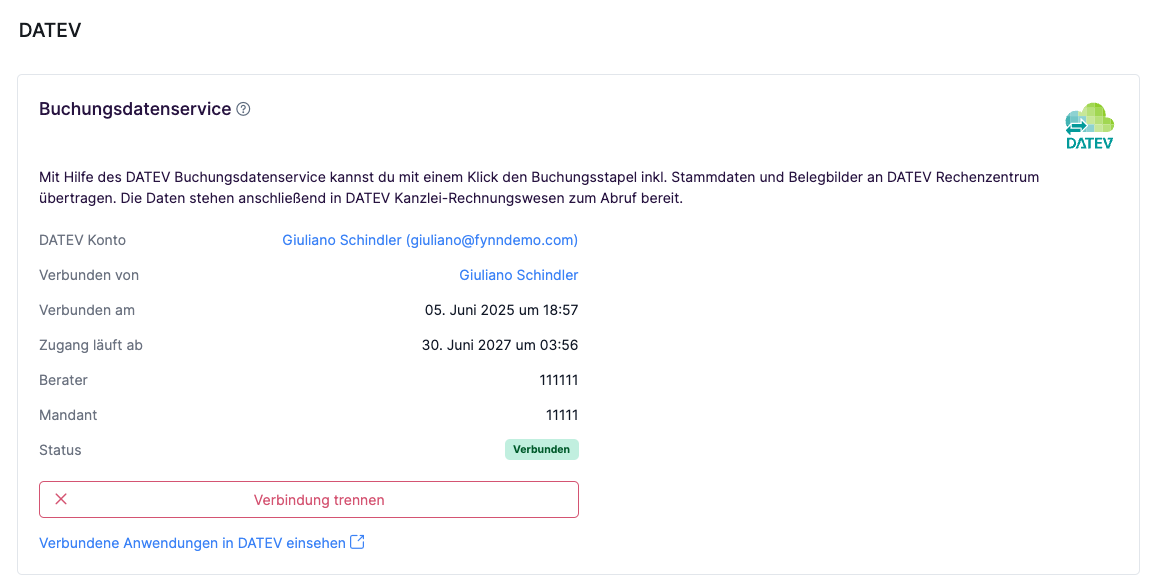
DATEVconnect online connection established

Transfer DATEVconnect online Data

Important: Documents exported via the Posting Data Service have their postings finalized upon export.Important: Already finalized documents will not be exported again. This means that if a manual DATEV export is started as a Zip file and finalized there, they will no longer be available for the Posting Data Service.Important: Unpaid invoices are also transferred.
1

Navigate in Fynn to the menu on the left side under Accounting > DATEV.

2

Click on Start Export

In this step, you can select the year and the current month for which the data should be exported.
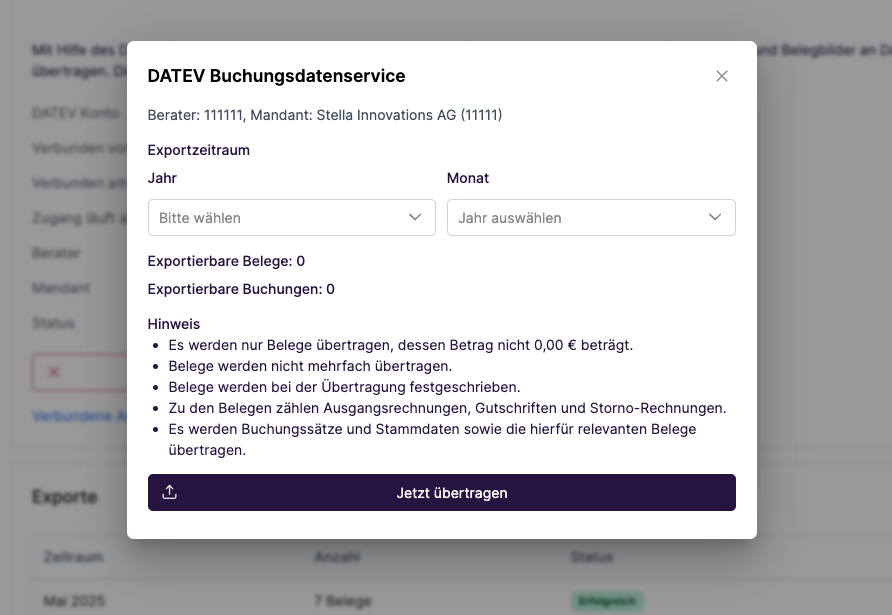
Start DATEVconnect online export
By clicking “Transfer Now”, the export will start. This may take a few minutes, depending on the number of documents to be transferred.
3

Export completed

After the export is completed, a summary of the transferred data is displayed. Here you can see the number of transferred invoices, cancellations, credit notes, journal entries, and debtors.
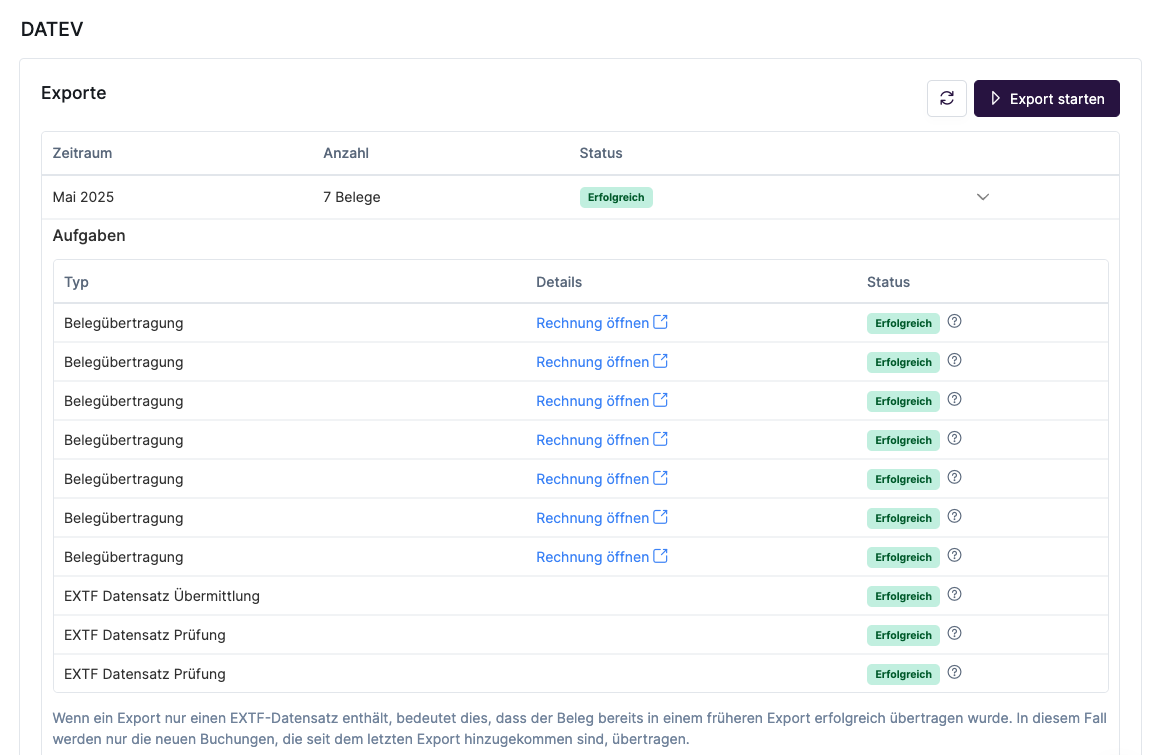
DATEV Export completed

Troubleshooting

Header Version

The header version is fixed in Fynn and cannot be changed. The currently used header version is 712.