

Add Payment
When a customer pays an invoice, you can manually add the payment in Fynn to update the invoice status. This is relevant, for example, when bank transfers have been made or payments have been recorded in an external system.- Using the Web App
- Using the API
1
Open Invoice
Navigate to the desired invoice in the invoice overview
2
Add Payment
Click on
Add Payment3
Enter Payment Details
Enter the payment details and confirm with 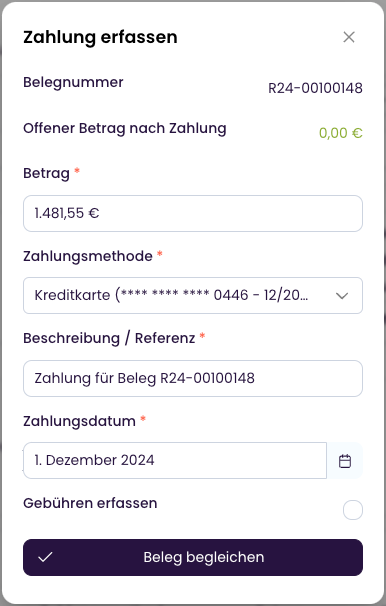
Save.If the amount matches the invoice, the invoice is automatically set to Paid.
If notification settings are enabled, the customer will be informed about the payment receipt and the updated invoice status.Retry Payment
If a payment has failed, you can retry it. A new or existing payment method can be used. After changing the payment method, the outstanding amount will automatically be collected via the new payment method.- Using the Web App
- Using the API
1
Open Invoice
Navigate to the desired invoice in the invoice overview
2
Retry Payment
Click on 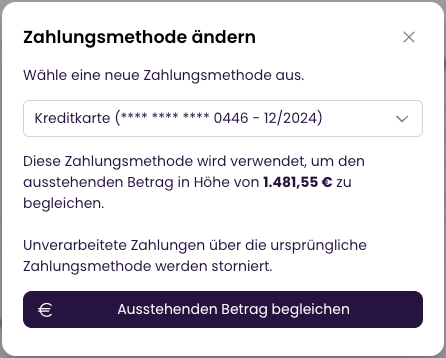
Actions > Change Payment Method.
Select a new payment method and confirm with Settle Outstanding Amount.The new payment method will automatically be used for the outstanding payment.Check how up-to-date your bank data is
Right above the table on the payments overview, you can see when your connected bank accounts were last synced — for example2 hours ago, 14:32. That way, you can tell at a glance whether the payments you’re looking at reflect the current state of your bank before you reconcile invoices or reach out to customers.
The hint is visible to every team member with access to the payments overview. Even if you can’t open the bank transactions yourself, you’ll always know how fresh the underlying data is.
If you haven’t connected any bank accounts yet, the line shows No bank accounts connected instead.
Payment Provider Fees
Payments through integrated payment providers may incur fees. These are transparently displayed in the invoice detail view:- Open the invoice
- Scroll to the “Payments” section
- The fees are shown individually per payment