

- Web App
- Use API
Subscriptions can be cancelled at any time. Cancelling a subscription causes the subscription to end at the cancellation date. Until that time, customers can continue to use the service and will be billed accordingly.Click
1
Open Subscription
Go to Subscriptions and open the desired subscription.
2
Cancel Subscription
Click 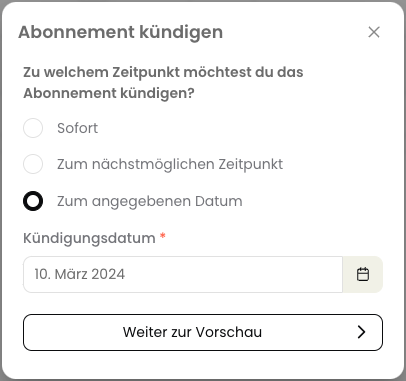
Cancel in the menu at the top right and select the desired option.- Immediately: The subscription is cancelled immediately and the service is terminated with immediate effect. Cancellation periods and terms are ignored.
- At the earliest possible date: The subscription is cancelled at the earliest possible date based on the specified cancellation periods and terms.
- On the specified date: The subscription is cancelled extraordinarily on the specified date. Cancellation periods and terms are ignored. Enter the desired date in the “Cancellation Date” field.
3
Review Cancellation
Click 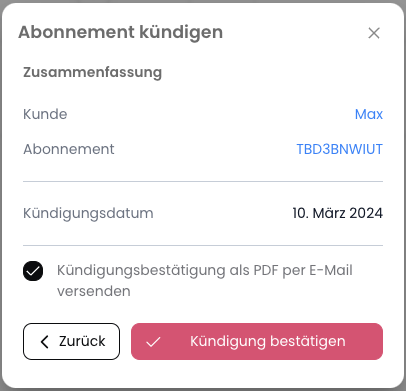
Continue to Preview. Review the cancellation and confirm it to complete the cancellation.4
Confirm Cancellation
If the cancellation occurs before the next billing date, or during a billing cycle, the costs are not prorated and part of the service is lost.
The option for pro-rata calculation will be added in a future release.
Confirm Cancellation to complete the cancellation. The subscription will then be cancelled and the service will end at the specified date.Revoke Cancellation
- Web App
- Use API
The cancellation of a subscription can be revoked as long as the cancellation date has not been reached. When revoking the cancellation, the subscription is continued and the service is billed as usual.Click
1
Open Subscription
Go to Subscriptions and open the desired subscription.
2
Revoke Cancellation
Click
Revoke Cancellation in the menu at the top right.3
Confirm Revocation
Upon revocation, the customer is not notified. The revocation of the cancellation takes effect immediately and the subscription is continued.
Revoke Cancellation to revoke the cancellation. The cancellation will then be revoked and the subscription will continue.Cancellation During Trial Period
Subscriptions that are in a trial period can be cancelled at any time. Cancelling a trial period causes the subscription to end immediately. To cancel a trial period, select theImmediately option and confirm the cancellation. The trial period will then end and the subscription will be cancelled immediately.