

Invite Users
You can invite an unlimited number of users to your organization. To invite users to your organization, follow these steps:1
Open the Settings
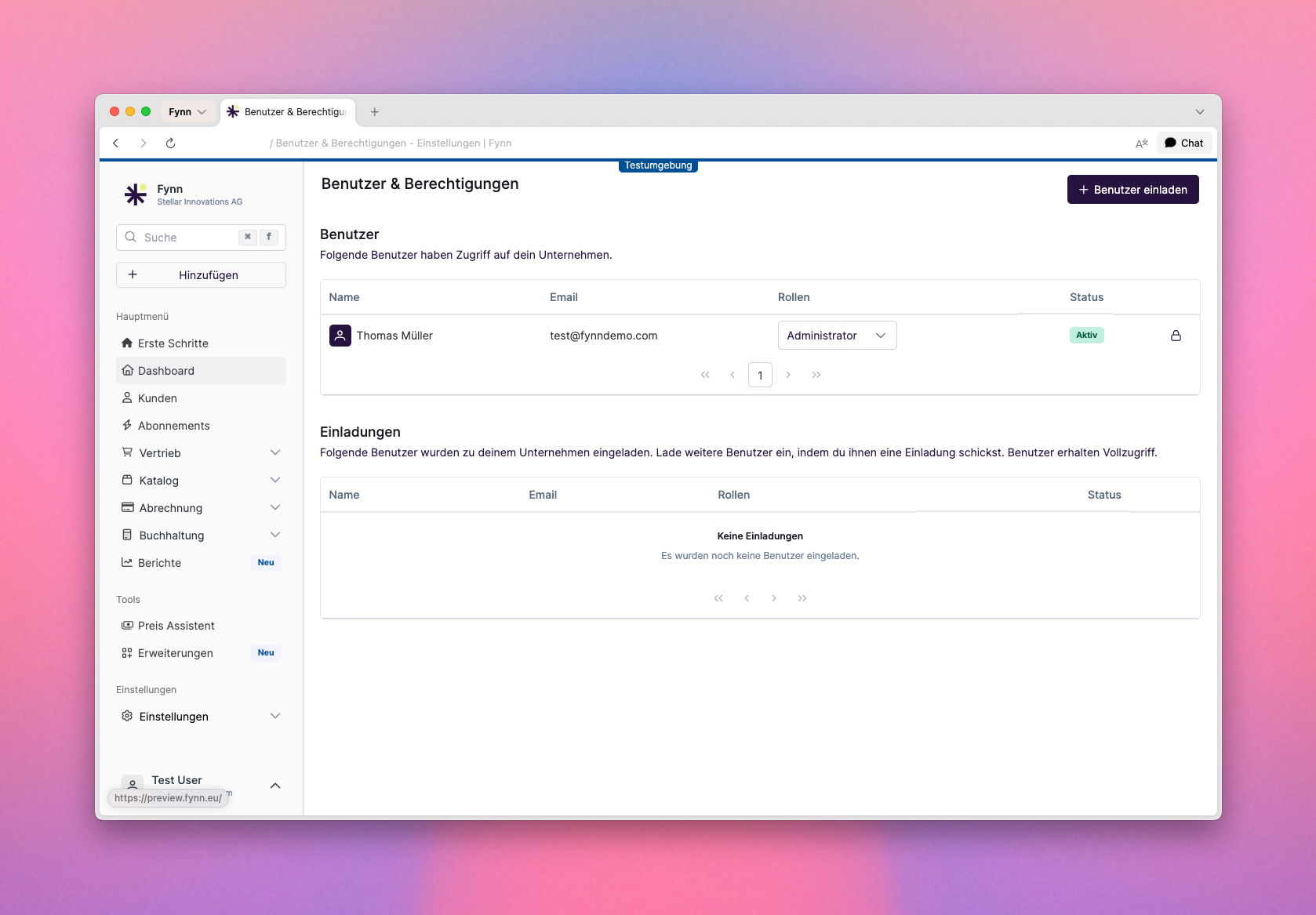
Go to Settings > Users
2
Add a new user by clicking the + symbol
3
Select the user's role
Choose between the roles
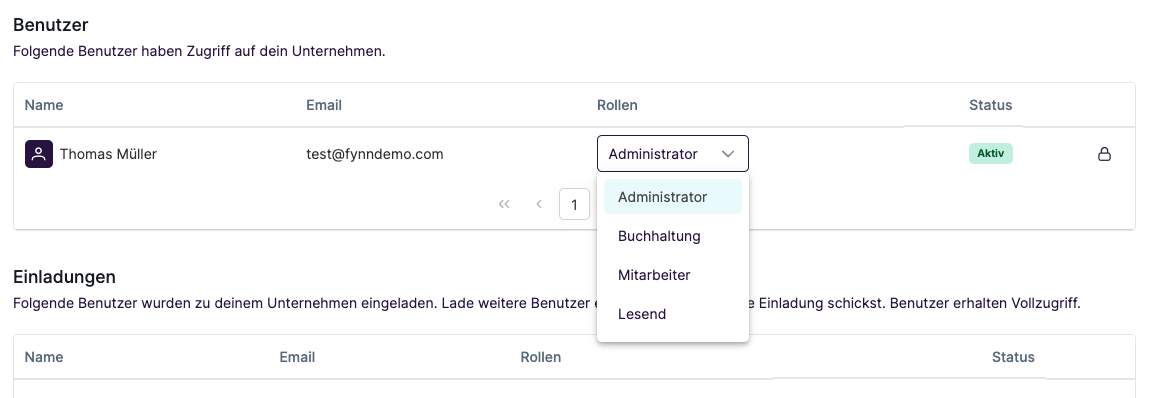
Administrator, Employee, and Read-only.Administrator: Has read and write access to all features and resources, as well as to the settings.Employee: Has read and write access to all features and resources, but no access to the settings.Read-only: Has only read access to all resources.
4
Click on Invite User
Remove User Invitation
To remove a user invitation from your organization, follow these steps:1
Open the Settings
Go to Settings > Users
2
Click on the trash icon next to the user invitation you want to remove
3
Click on the trash icon to remove the user invitation
The action must then be confirmed.
The invitation will be removed from your organization and the user will no longer be able to register.
Permissions
Fynn comes with three default roles that you can use for your users. These roles are:
The roles can be individually customized for each user.
- Using the Web App
- Using the API
1
Open the Settings
Go to Settings > Users
2
Click on the role selection field for the user
3
Select the new role for the user
4
Role successfully changed
The role is now changed immediately and the user will have the corresponding permissions after the next navigation in the application.
You cannot change the permissions for your own account. If you want to change the permissions for your account, please contact another administrator of your organization.
Lock User
If a user should no longer have access to the organization, the user can be locked.- Using the Web App
- Using the API
1
Open the Settings
Go to Settings > Users
2
Click on the lock icon to lock the user
The user will be locked and will no longer be able to access the data.
In the audit logs, the user will still be referenced to document the history of changes.
The user will not receive a notification about being locked.
Unlock User
If a user should have access to the organization again, the user can be unlocked.- Using the Web App
- Using the API
1
Open the Settings
Go to Settings > Users
2
Click on the lock icon to unlock the user
The user will be unlocked and will be able to access the data again.
The user will not receive a notification about being unlocked.
Create Roles
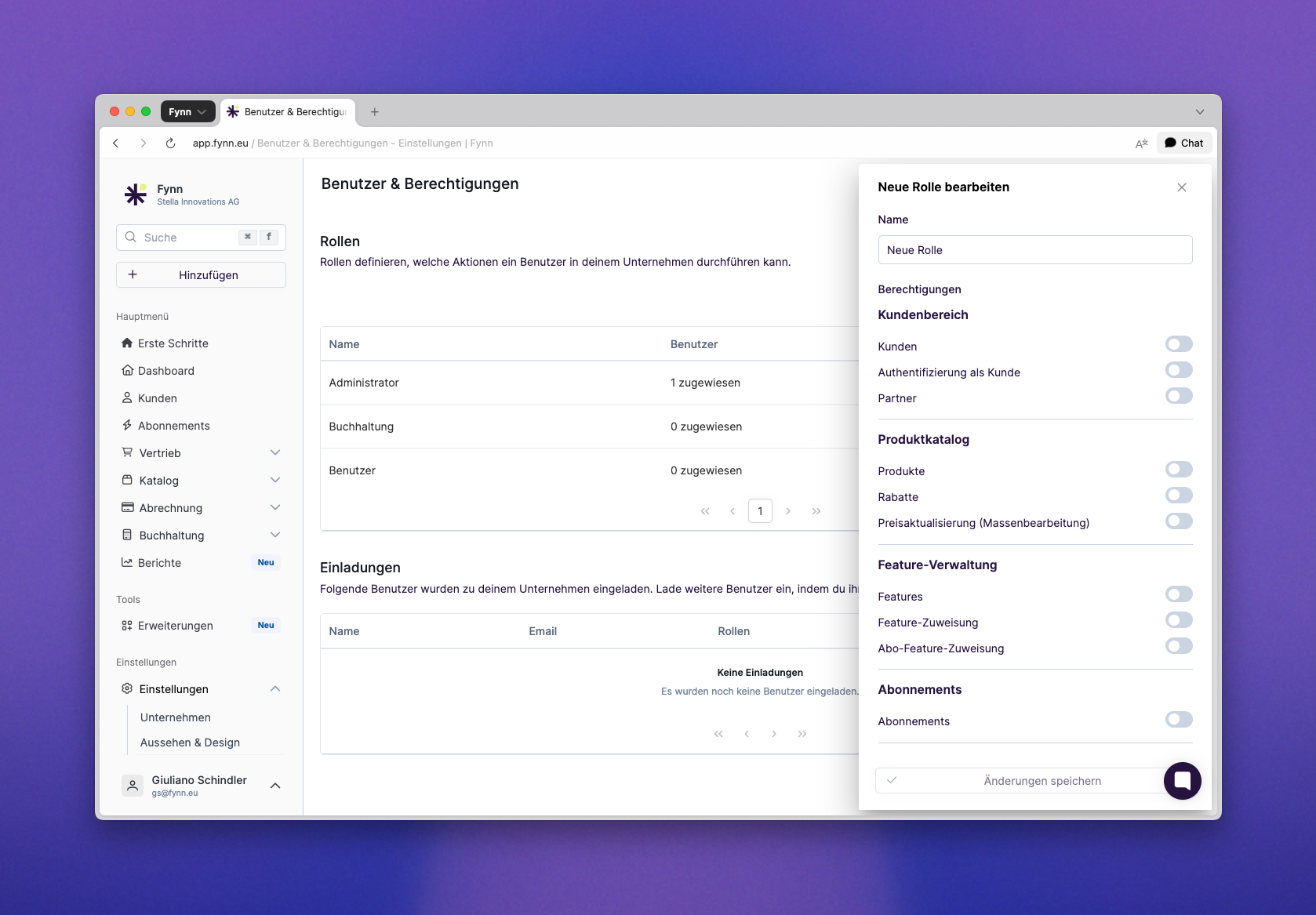
Fynn offers the ability to create custom roles to define specific permissions for different user groups.1
Open the Settings
Go to Settings > Users
2
Click on Add Role in the Roles section on the right side
3
Use the Role
The new role can now be assigned to an existing or new user.
Edit Roles
Roles cannot currently be edited. If you want to edit a role, please contact support.