

Create Billing Group
1
Open Billing Group Form
Click on “Create Billing Group” in the billing group dropdown.
2
Configure Billing Group
Assign a unique name to the billing group. This is only used internally and is not visible to customers.Select under “Timing”: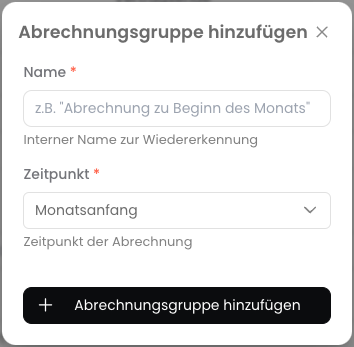
- Beginning of Month: All subscriptions are billed at the beginning of the month.
- End of Month: All subscriptions are billed at the end of the month.
- Beginning of Year: All subscriptions are billed at the beginning of the year.
- End of Year: All subscriptions are billed at the end of the year.
- Custom: All subscriptions are billed on a specific day of the month.
3
Create Billing Group
Now click “Add Billing Group” to create the billing group.